Resources
This section helps you manage the compute resources allocated to your application and configure how your application is exposed to users via endpoints and domains.
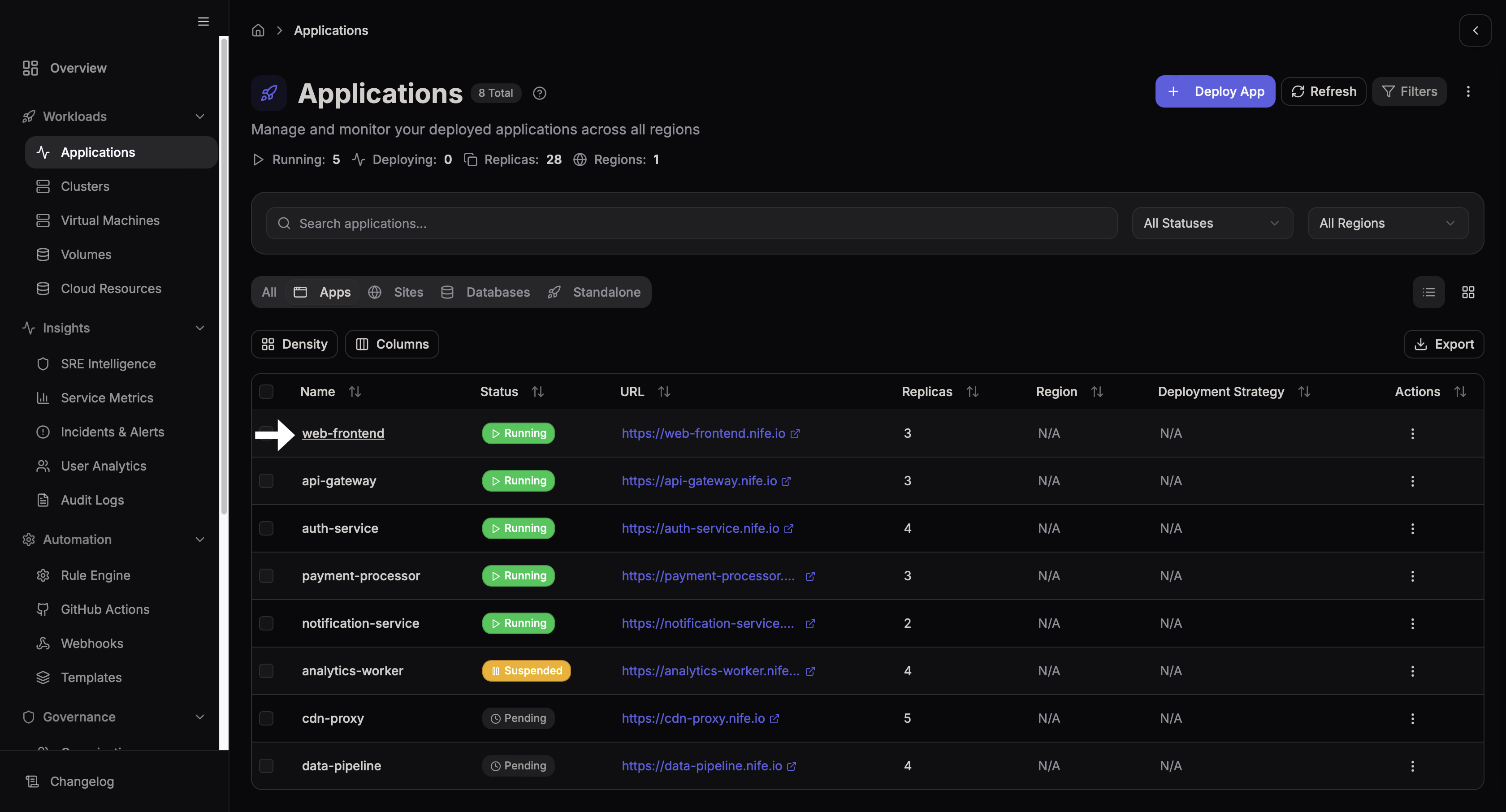
Navigate to Application
To begin, navigate to your application from the dashboard.
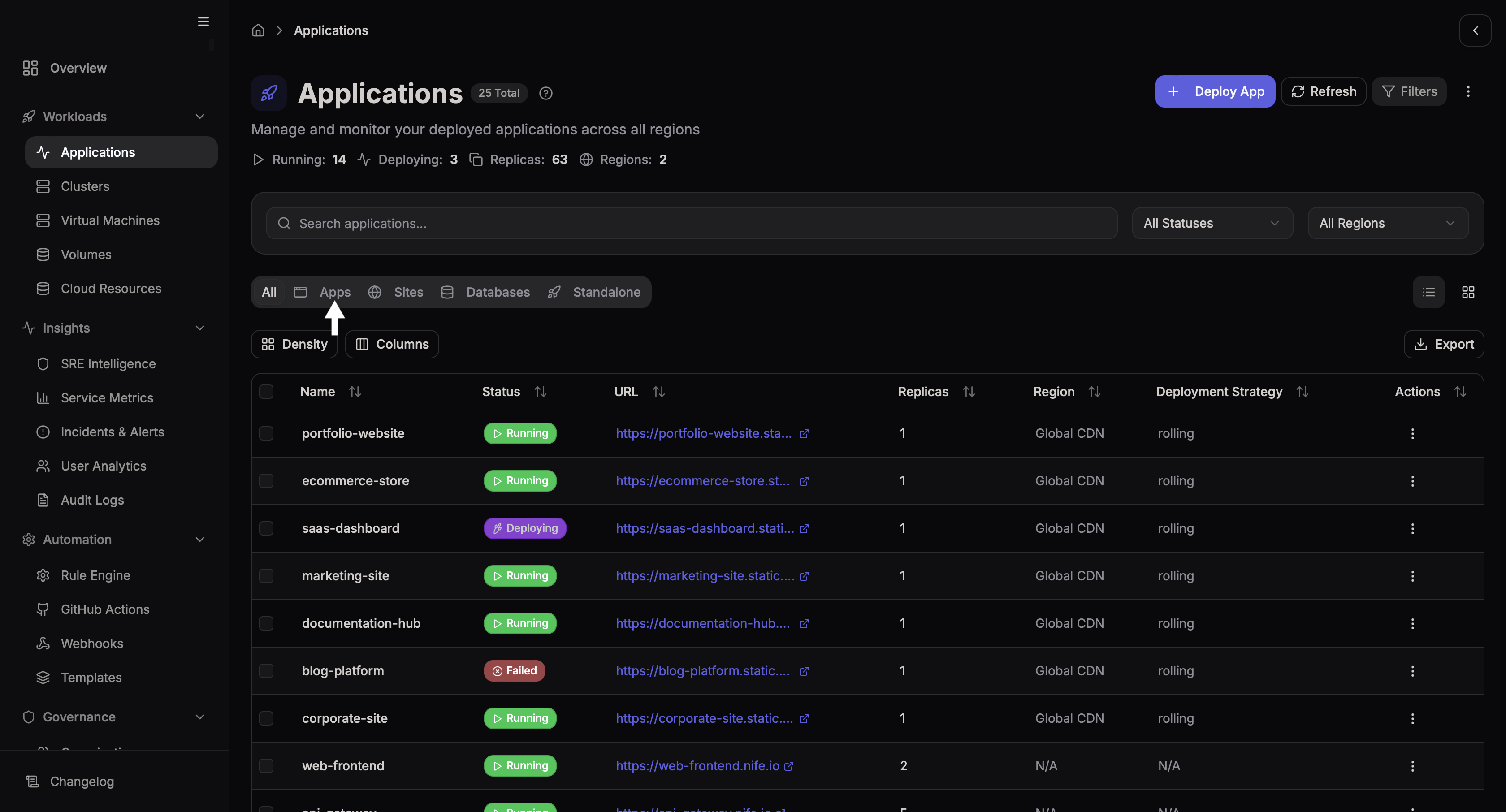
Select the application you want to configure.
Resources
The Resources section allows you to control how much CPU and memory your application uses.
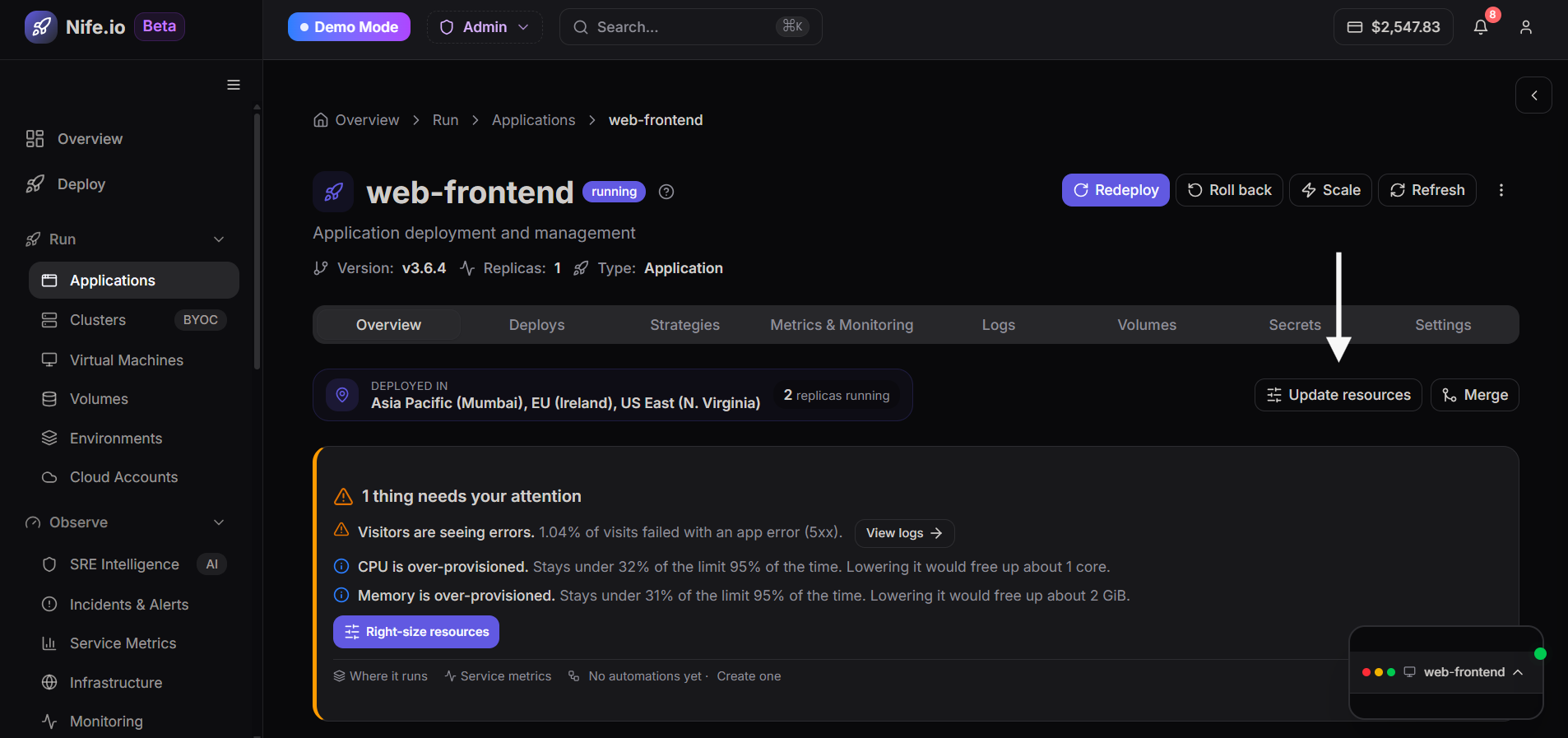
Step 1: Open Resources Settings
Click on the Update Resources button.
Step 2: Configure Horizontal & Vertical Scaling
In the Resource configuration panel, you can scale both vertically and horizontally:
1. Vertical Scaling (Instance Sizing)
Adjust the hardware allocation per container instance using the interactive sliders:
- CPU Allocation: Slide from
0.25 vCPUup to16 vCPU. - Memory Allocation: Slide from
256 MBup to64 GB RAM. - Resource Requests vs. Limits: Configure baseline reservation and burst ceiling to balance performance and multi-tenant density.
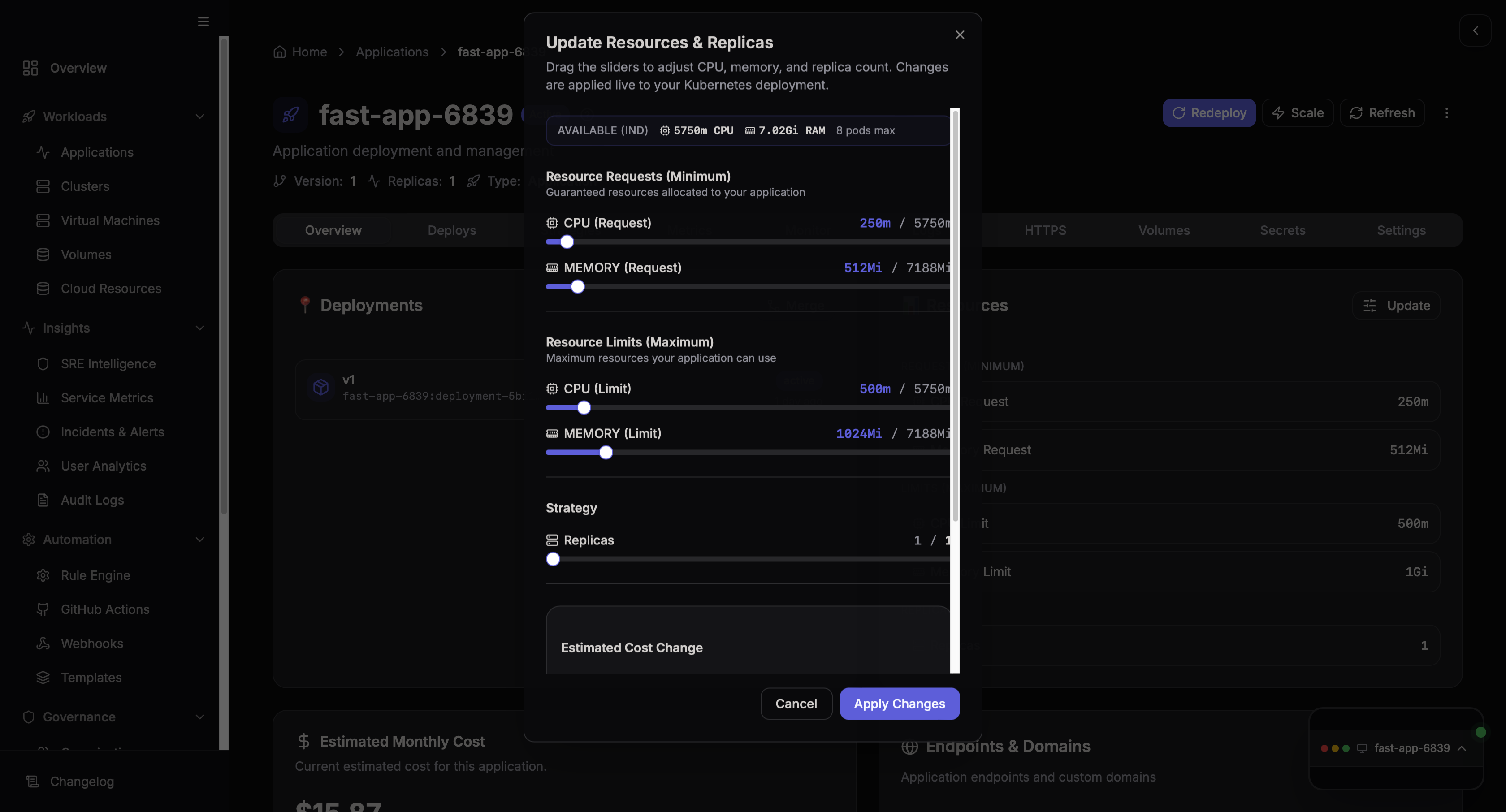
2. Horizontal Scaling (Replica Count & Autoscaling)
Control how many replicas run concurrently across global regions:
- Fixed Replicas: Manually set a fixed instance count (e.g.
3active pods). - Auto-Scaling (HPA): Toggle autoscaling on, set minimum replicas (e.g.
2) and maximum replicas (e.g.20), and define the CPU/Memory utilization threshold (e.g. trigger auto-scale at75%load).
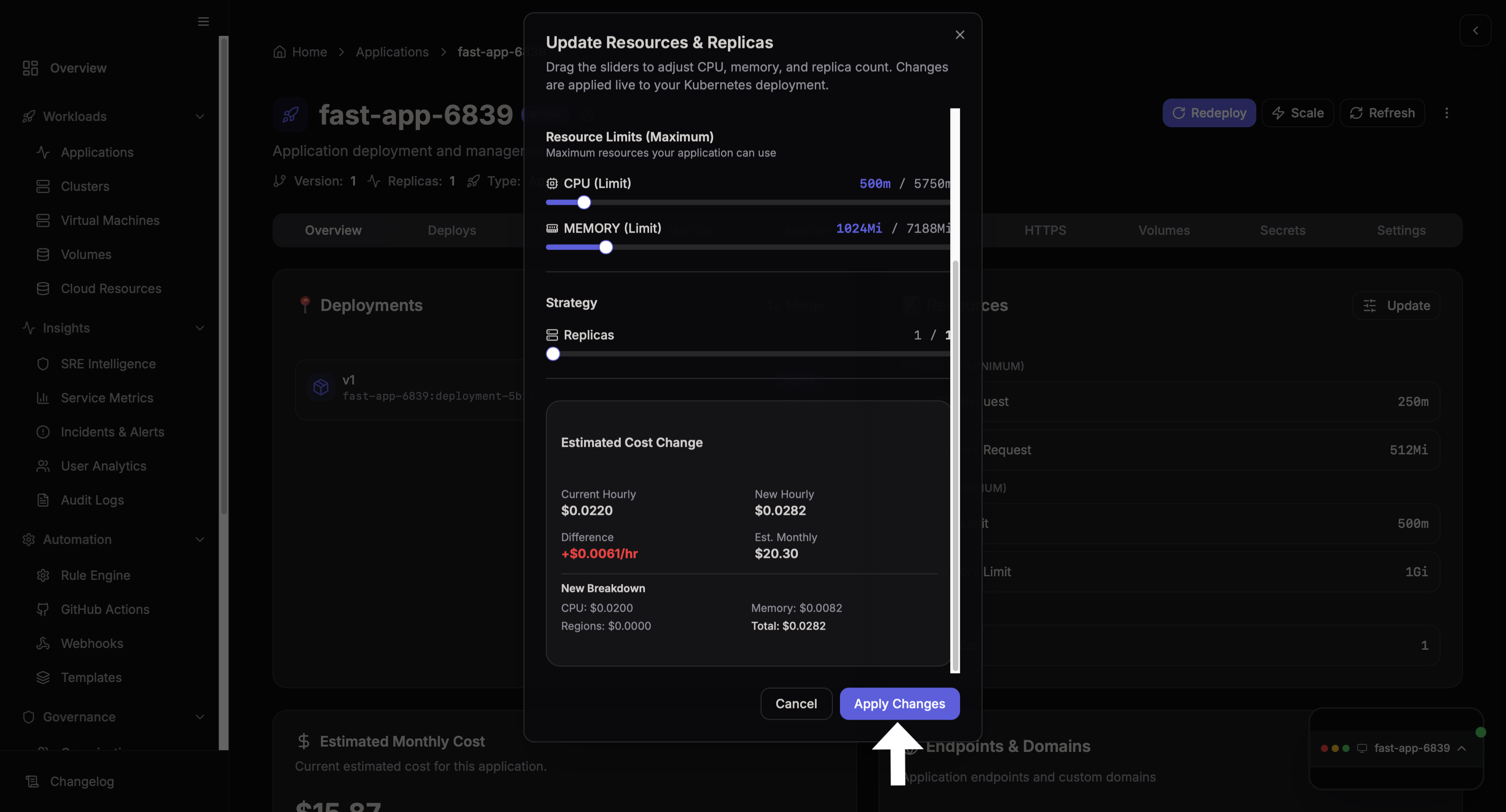
Step 3: Review Estimated Cost & Apply
Once you adjust the scaling sliders:
- The Real-Time FinOps Cost Estimator calculates the monthly projected difference based on compute hours and replica counts.
- Click Apply Changes to execute zero-downtime rolling updates across all active nodes.