Invite a New User
To invite a user and manage their roles on the Nife platform.
Steps to Invite User:
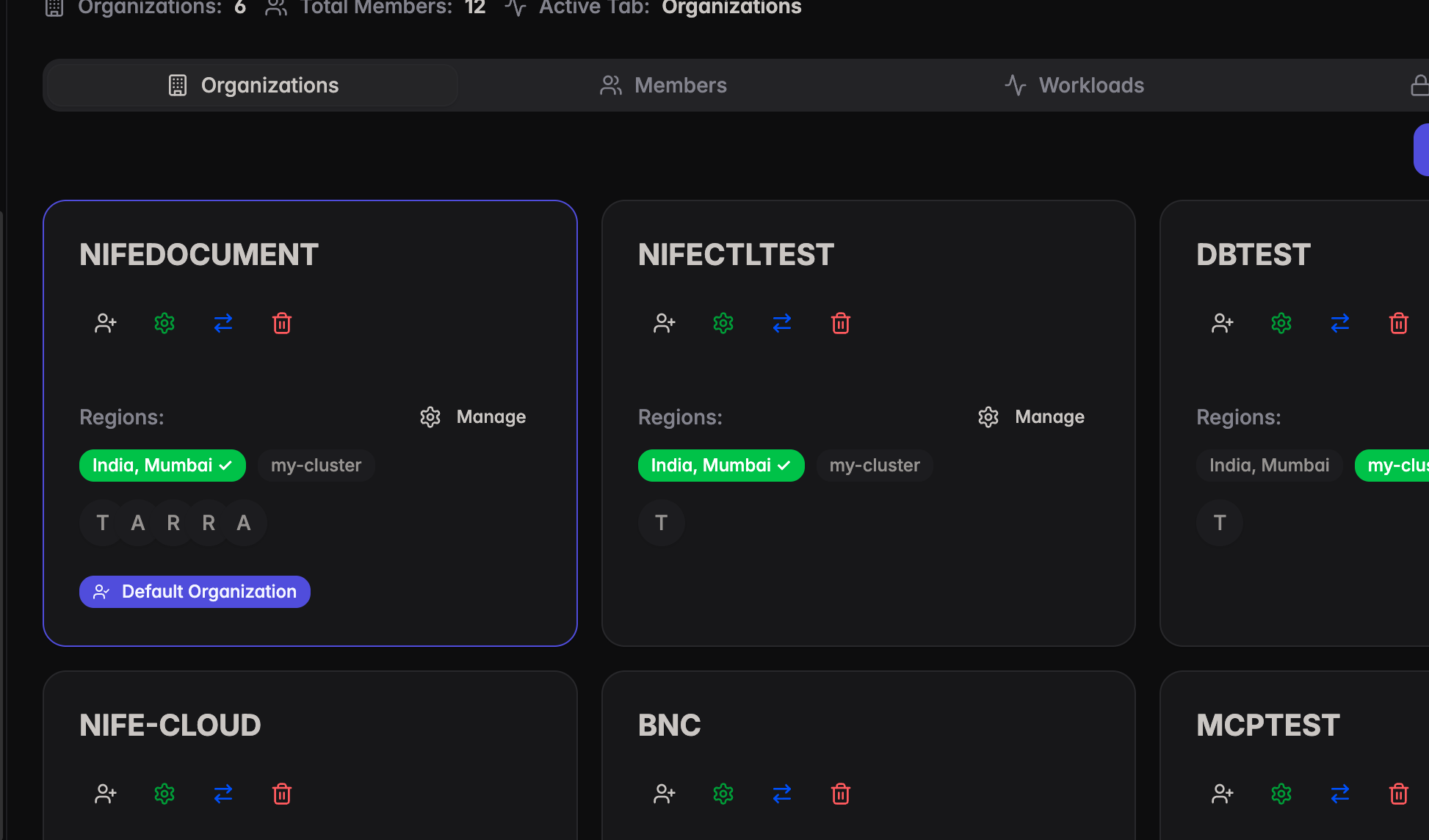
- On the dashboard, click on your Organization from the sidebar. You will see your organization cards.
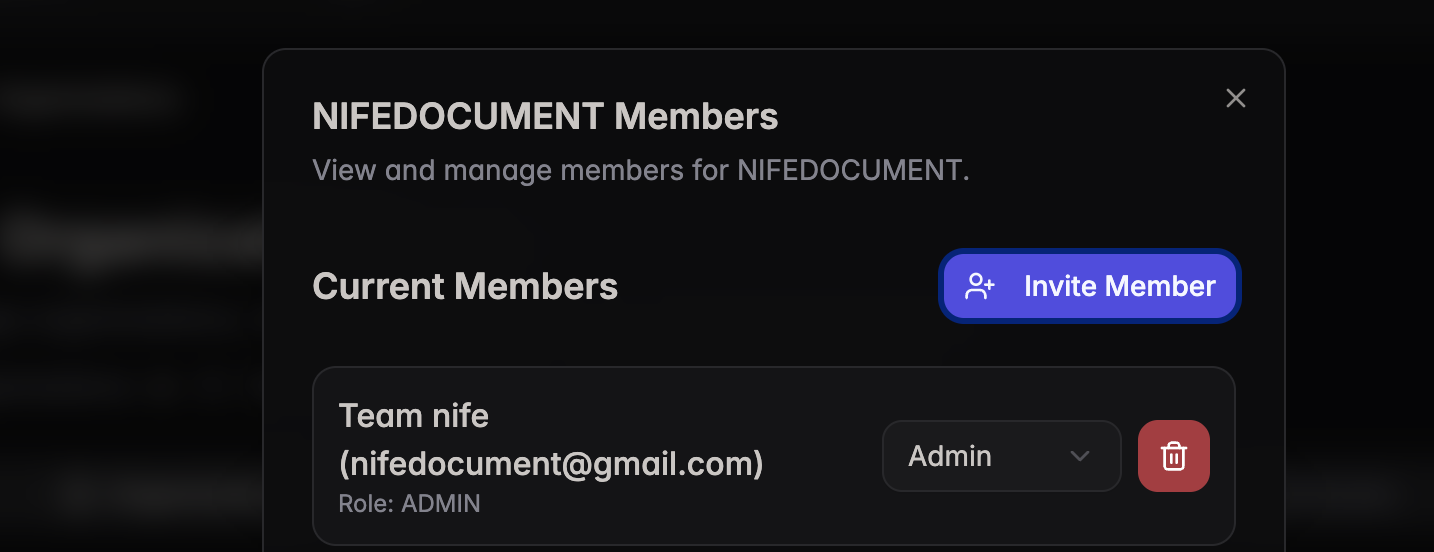
- Click the Invite Member button in the Members dialog.
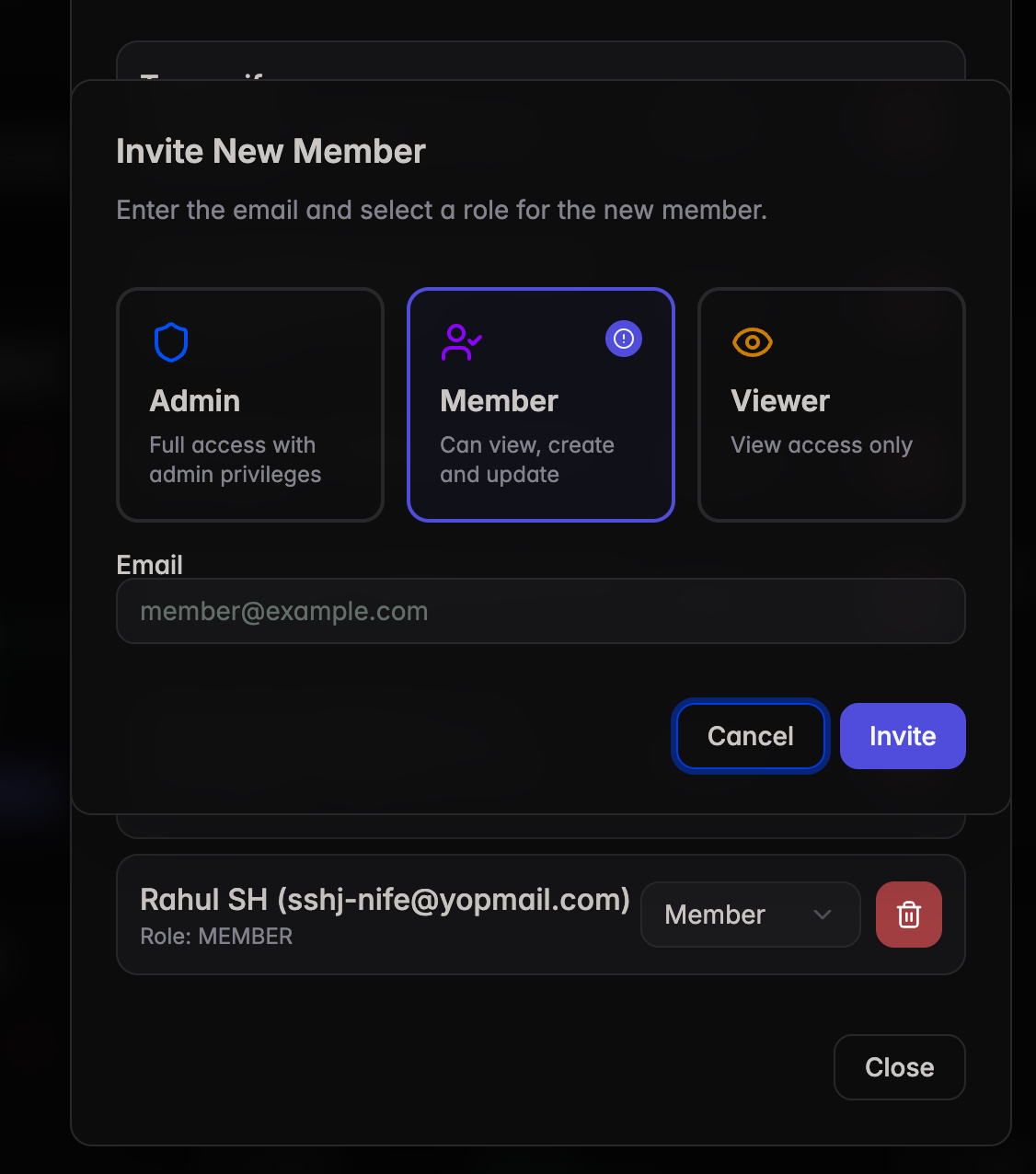
- In the Invite New Member dialog, select a role and enter the email address:
Admin— Full access with admin privilegesMember— Can view, create and updateViewer— View access only
- Click Invite
tip
For more details on member invitations and role management, please visit the Member Invitations documentation.
After submitting, the invited user will receive an email containing the username and password to log in to https://launch.nife.io/.
Edit User Role
To modify a user's role or remove them from the organization:
- Open the organization Members dialog. You will see all current members with their roles.
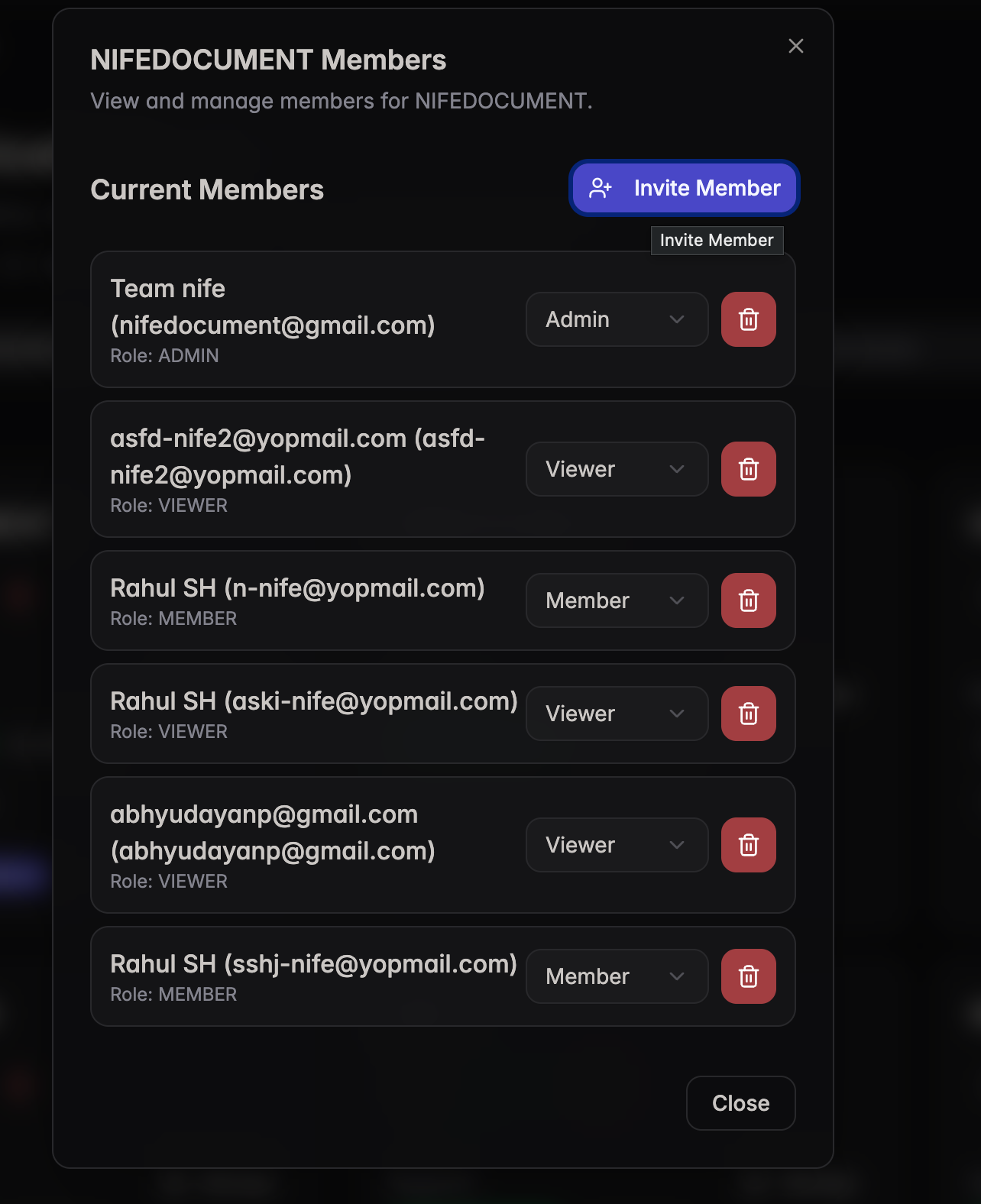
- Click the role dropdown next to a member to change their role (Admin, Member, or Viewer).
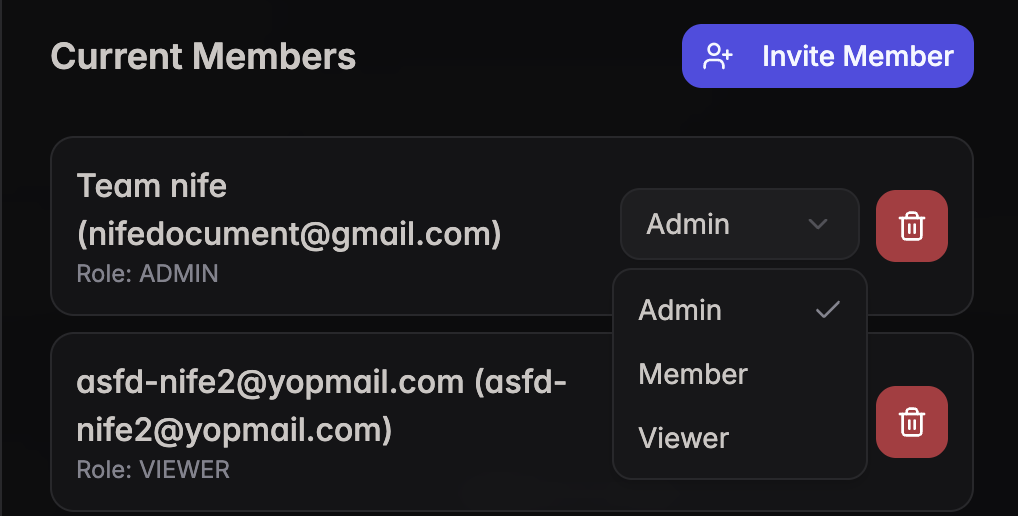
- To remove a member, click the delete (trash) icon next to them. Changes are saved automatically.