Secrets & Vault
Overview
The Secrets & Vault section lets you securely store, rotate, and audit sensitive credentials across your organization. All secret values are AES-CBC encrypted in the browser before being sent — plaintext never crosses the wire.
You can connect external vault providers or use Nife's built-in Internal Vault.
Supported providers:
- HashiCorp Vault
- AWS Secrets Manager
- Azure Key Vault
- GCP Secret Manager
Dashboard Overview
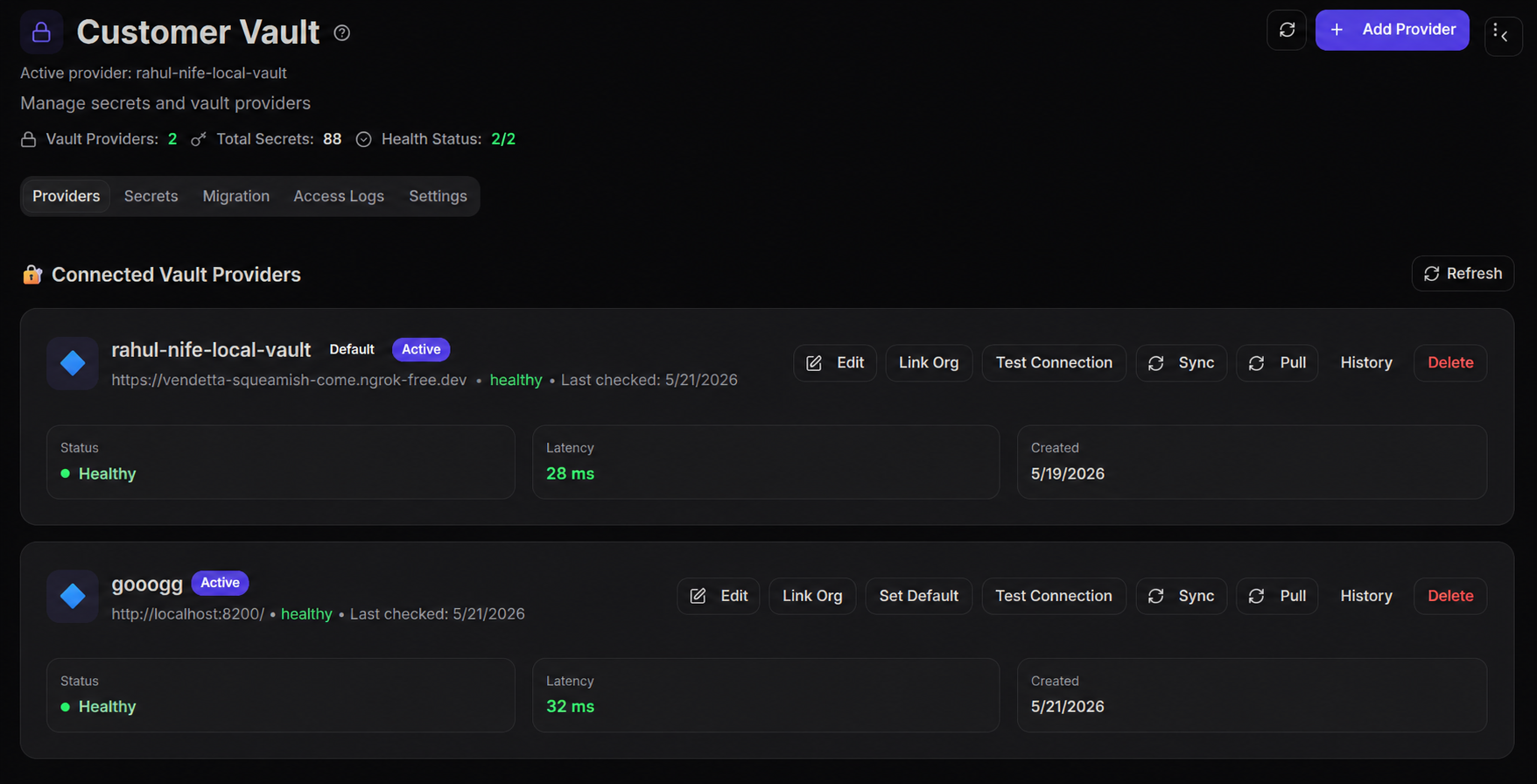
The page header shows a live summary of your vault:
| Metric | Description |
|---|---|
| Vault Providers | Number of connected providers. Highlighted in orange if none are configured. |
| Total Secrets | Count of all secrets currently stored. |
| Health Status | Ratio of healthy to total providers (e.g. 2/3). Highlighted in red if any provider is unhealthy. |
Tabs
The vault page is split into five tabs:
| Tab | Purpose |
|---|---|
| Providers | Connect, configure, sync, and delete vault providers |
| Secrets | Add, search, view, edit, export, and delete secrets |
| Migration | Move secrets from one vault provider to another |
| Access Logs | Audit trail of every read, write, and rotation event |
| Settings | Configure auto-rotation, access notifications, and log retention |
Providers
Connecting a Vault Provider
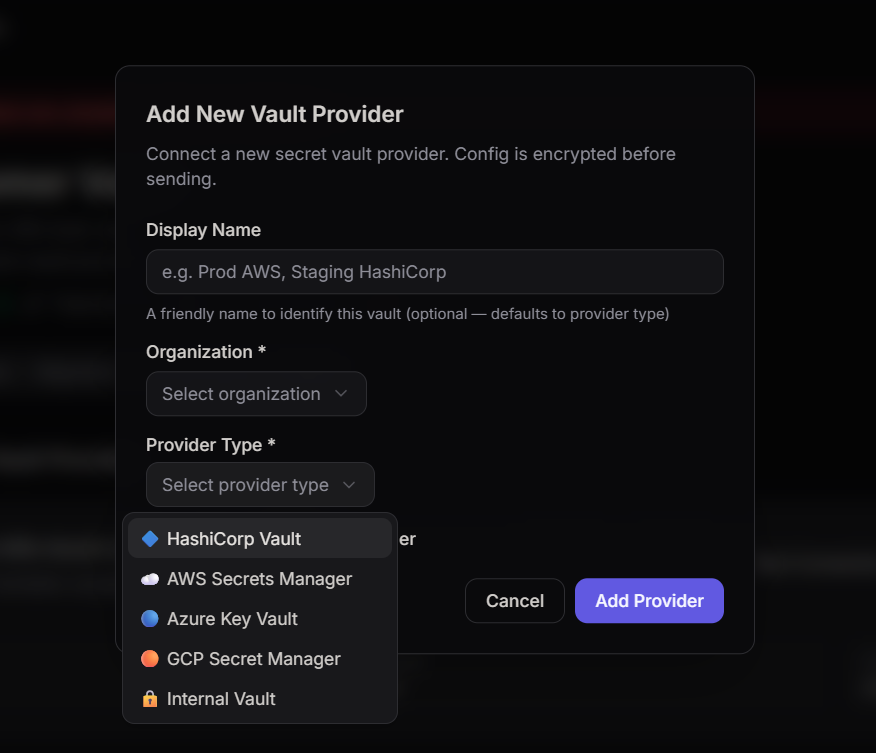
- Click Add Provider (top-right of the page)
- Enter an optional Display Name (e.g.
Prod AWS,Staging HashiCorp) - Select the Organization to link the provider to
- Choose a Provider Type from the dropdown
- Fill in provider-specific fields (see below)
- Optionally check Set as default vault provider
- Click Add Provider
Provider Actions
Each connected provider card shows:
- Status —
healthy,unhealthy, orunknownwith a colour indicator - Created date
- Active / Inactive badge
- Default badge (if it is the default provider)
Available actions per provider:
| Action | Description |
|---|---|
| Edit | Update the display name or rotate credentials (URL, token, mount path) |
| Link Org | Attach additional organizations to share this provider |
| Set Default | Make this provider the default for new secrets |
| Test Connection | Ping the provider and refresh its health status |
| Sync | Start a full sync job and poll until completion. Progress shown with a spinner. |
| Pull | Import secrets from the external vault into Nife |
| History | View the last 20 sync job records with counts of updated and failed secrets |
| Delete | Permanently remove the provider |
Linking Organizations
A single vault provider can be shared across multiple organizations.
- Click Link Org on any provider card
- Select an organization from the dropdown and click Link
- Already-linked organizations appear in the list below
- To remove access, click Unlink next to the organization (requires confirmation)
You cannot unlink the last remaining organization. Delete the provider instead.
Sync Job History
Click History on any provider to expand a panel showing the last 20 sync jobs. Each row shows:
- Sync type (e.g.
full) - Timestamp
- Secrets updated (
↑) and failed (✗) - Status badge:
completed,completed_with_errors, orfailed
Secrets
Adding a Secret
- Go to the Secrets tab
- Click Add Secret
- Select the vault to store it in (Internal or an external provider)
- Select the Organization
- Enter an optional Path (defaults to
secrets) - Enter the Key — use
UPPER_SNAKE_CASE, e.g.DATABASE_URL - Enter the Value
- Click Add Secret
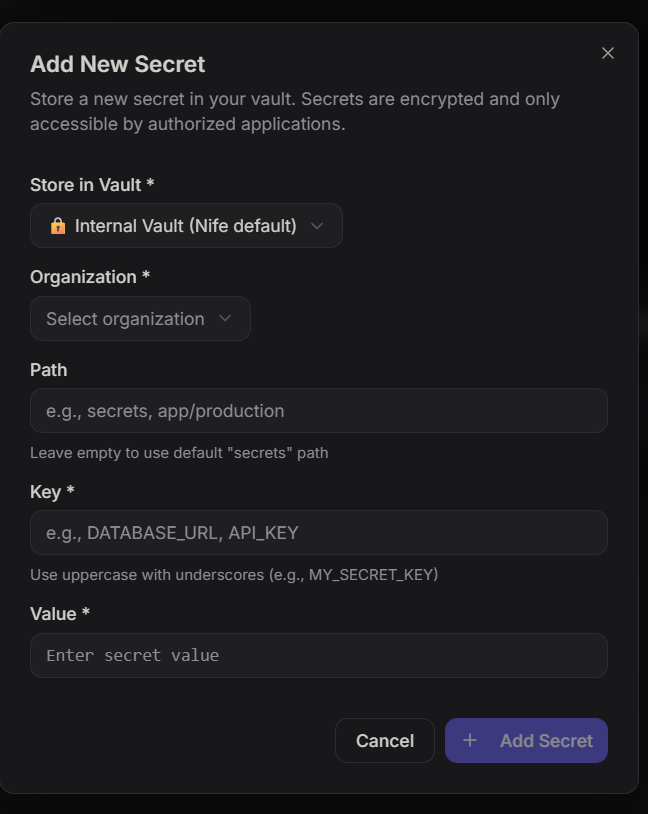
The secret value is masked in the input and never shown in plaintext over the network.
Bulk Import from .env
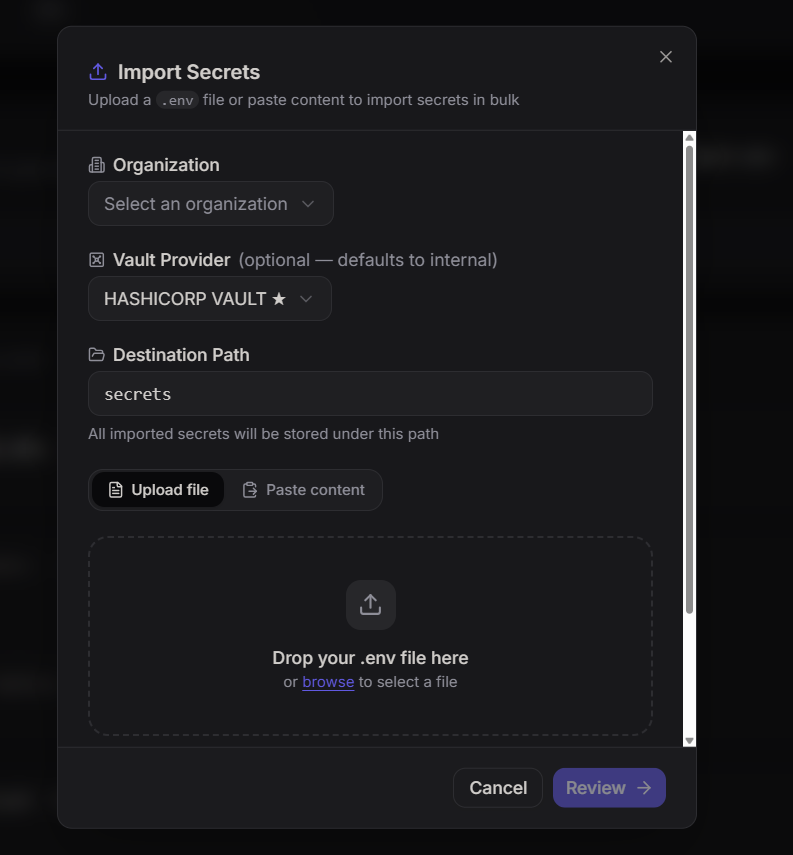
- Click Import .env in the Secrets tab header
- Paste or upload your
.envfile content - Confirm the import — all key-value pairs are stored as individual secrets
Searching and Paginating Secrets
- Use the search bar to filter by key name or path
- Results paginate at 10 secrets per page
- The pagination bar shows current range and total count
Secret Actions
Each secret row supports:
| Action | Description |
|---|---|
| Copy | Copies the decrypted value to clipboard |
| View | Opens a detail dialog showing the decrypted value with show/hide toggle |
| Edit | Opens a dialog to overwrite the secret value |
| Delete | Permanently removes the secret (requires permission) |
Exporting Secrets
Click Export .env to download all secrets on the current page as a .env file.
- Each secret is fetched individually to retrieve its real value
- Values containing spaces or special characters are automatically quoted
- A warning is shown if any secret could not be fetched (fallback value used)
Migration
The Migration tab lists secrets that can be moved between vault providers.
Migrating a Secret
- Go to the Migration tab and click Refresh to load the list
- Find the secret you want to move
- Click Migrate next to it
- Select the Target Vault Provider from the dropdown
- Click Migrate Secret
The original secret is removed from the source provider after migration (
preserveOriginal: false).
Access Logs
The Access Logs tab shows a timestamped audit trail of all vault operations.
Each log entry shows:
| Field | Description |
|---|---|
| Operation | read, write, rotate, delete, etc. |
| Secret | The key or secret ID that was accessed |
| Timestamp | When the operation occurred |
| User | User ID or service account that triggered it |
| Provider | Which vault provider was involved |
| IP Address | Client IP (if available) |
| Status | success (green) or failed (red) |
Click Refresh to reload the latest 100 log entries.
Settings
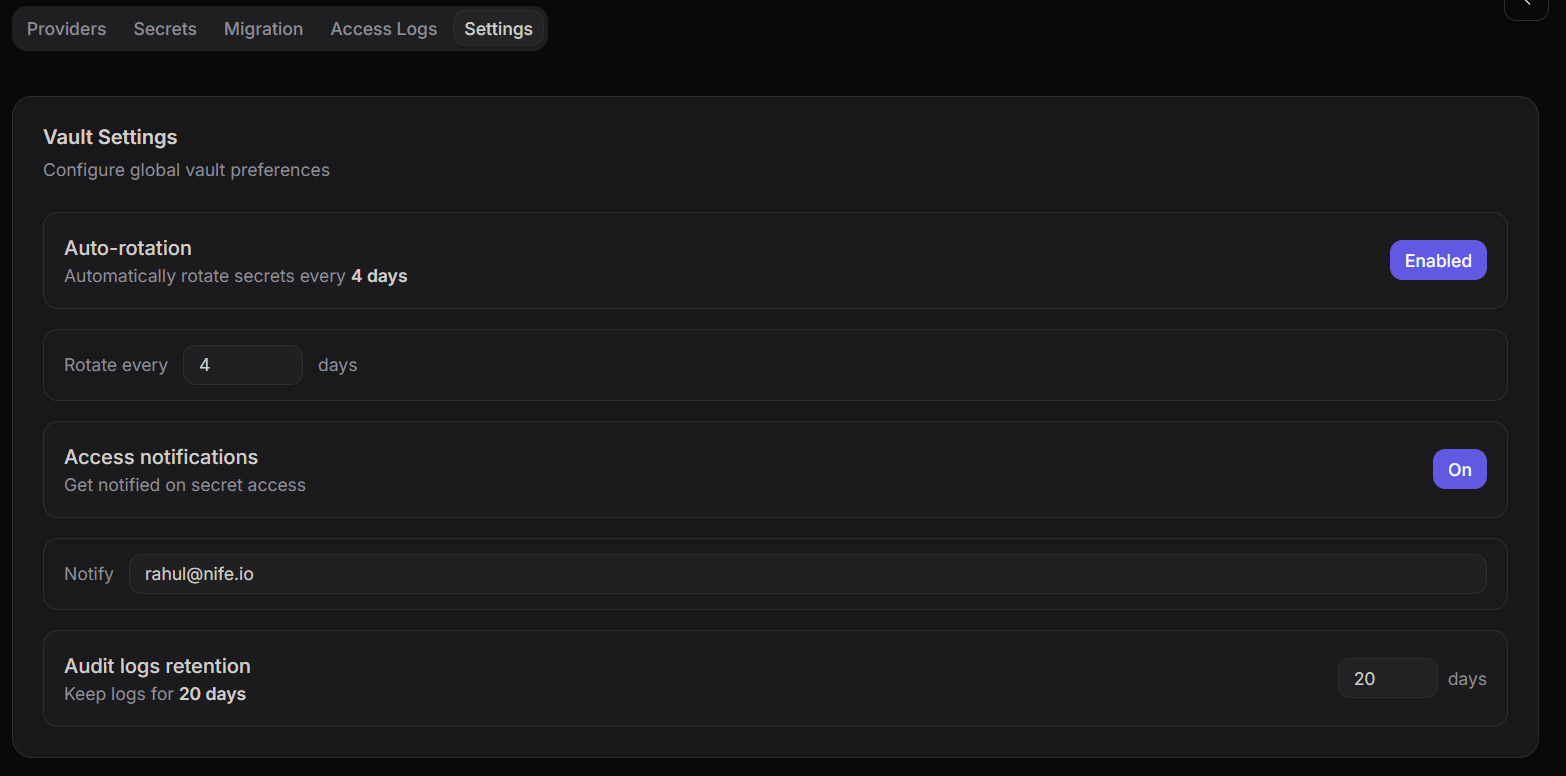
The Settings tab configures organization-wide vault behaviour.
Auto-Rotation
| Setting | Description |
|---|---|
| Enable Auto-Rotation | Toggle automatic secret rotation on/off |
| Rotation Interval | Number of days between rotations (1–365). Shown when auto-rotation is enabled. |
Changes are saved immediately on toggle or when you click out of the interval field.
Audit Log Retention
Set how many days audit logs are retained (7–3650 days). Changes are saved on blur.
Security Notes
- Secret values are AES-CBC encrypted in the browser using the app encryption key before any network request is made
- The backend stores and returns only ciphertext — decryption happens client-side
- Vault provider configs (URL, token, mount path) are also encrypted before being sent to the backend
- TLS verification is enabled by default for HashiCorp Vault connections
Related Resources
- 🛠️ Base64 Encoder/Decoder — useful when preparing secret values for transport or storage
- 🛠️ Hash Generator — generate checksums to verify secret values haven't changed