Scale & Backup region
Scale
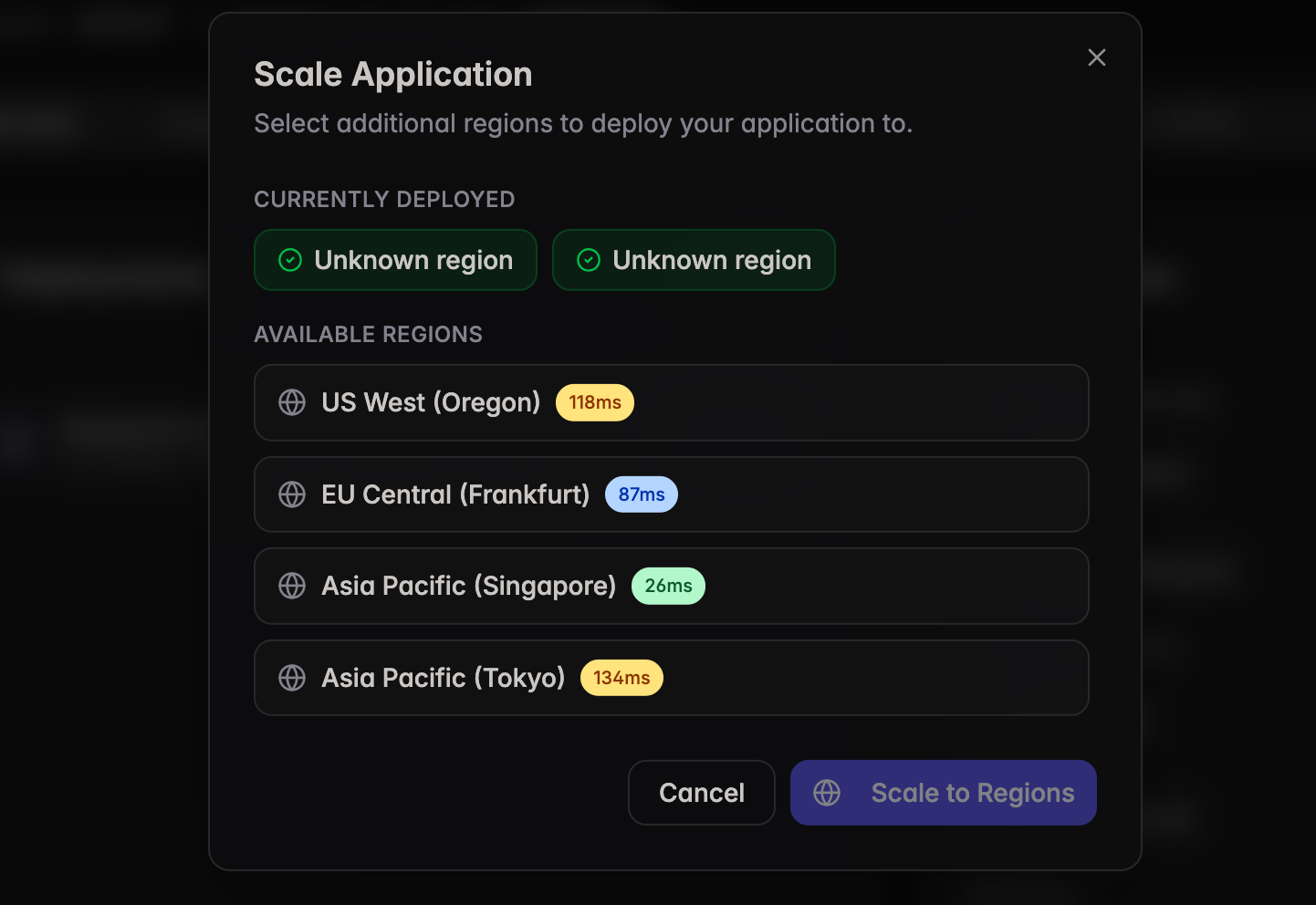
The Scale feature allows you to deploy your application to additional regions directly from the application overview page. It shows your currently deployed regions and lists all available regions along with their latency, helping you choose the best locations for your workload.
To Scale resources
Scale your application to additional regions using the Scale button.
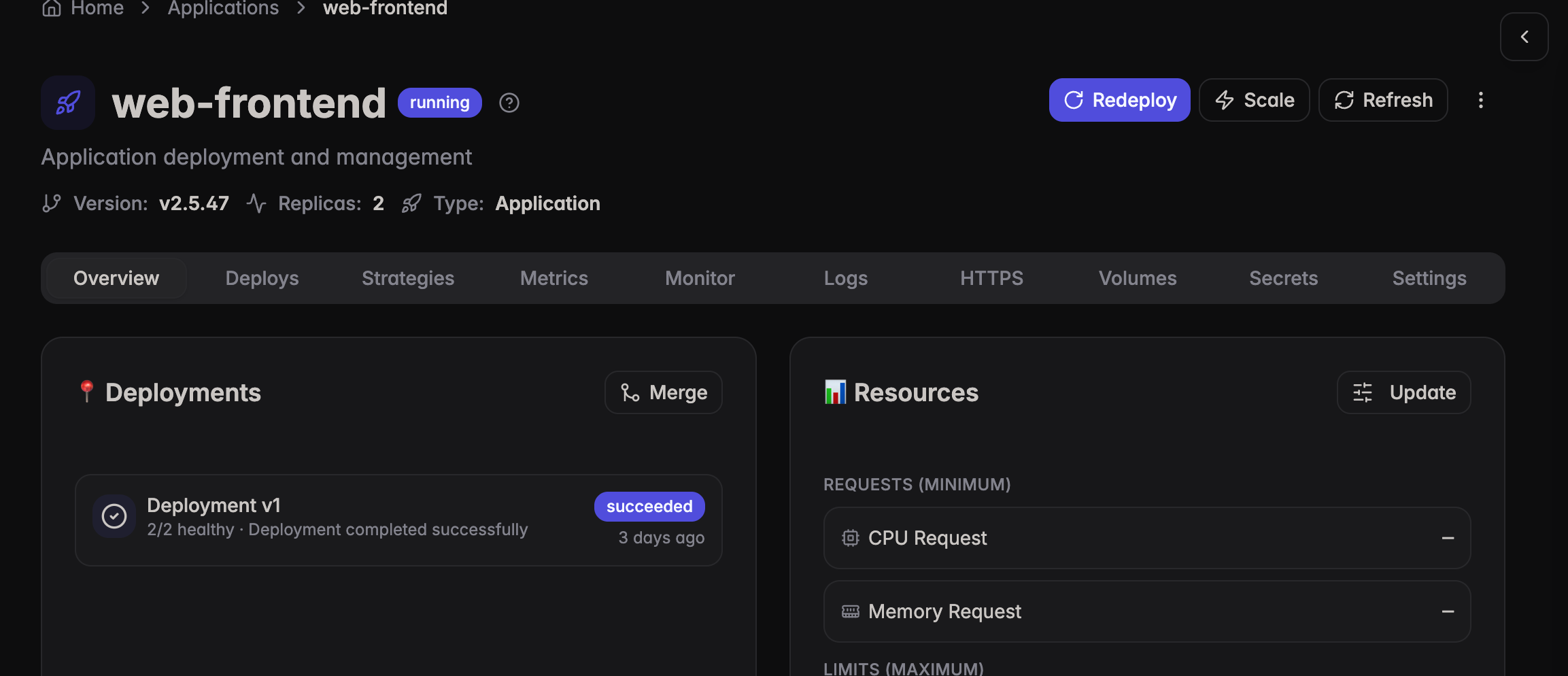
- Go to the left navigation tab > select an application > Overview tab
- Click the Scale button in the top-right area of the page
- In the Scale Application dialog, review the Currently Deployed regions
- Under Available Regions, select one or more regions you want to deploy to. Each region displays its current latency for reference.
- Click Scale to Regions
Once scaled, the new regions will be reflected in the application's overview page.
To create a Backup region
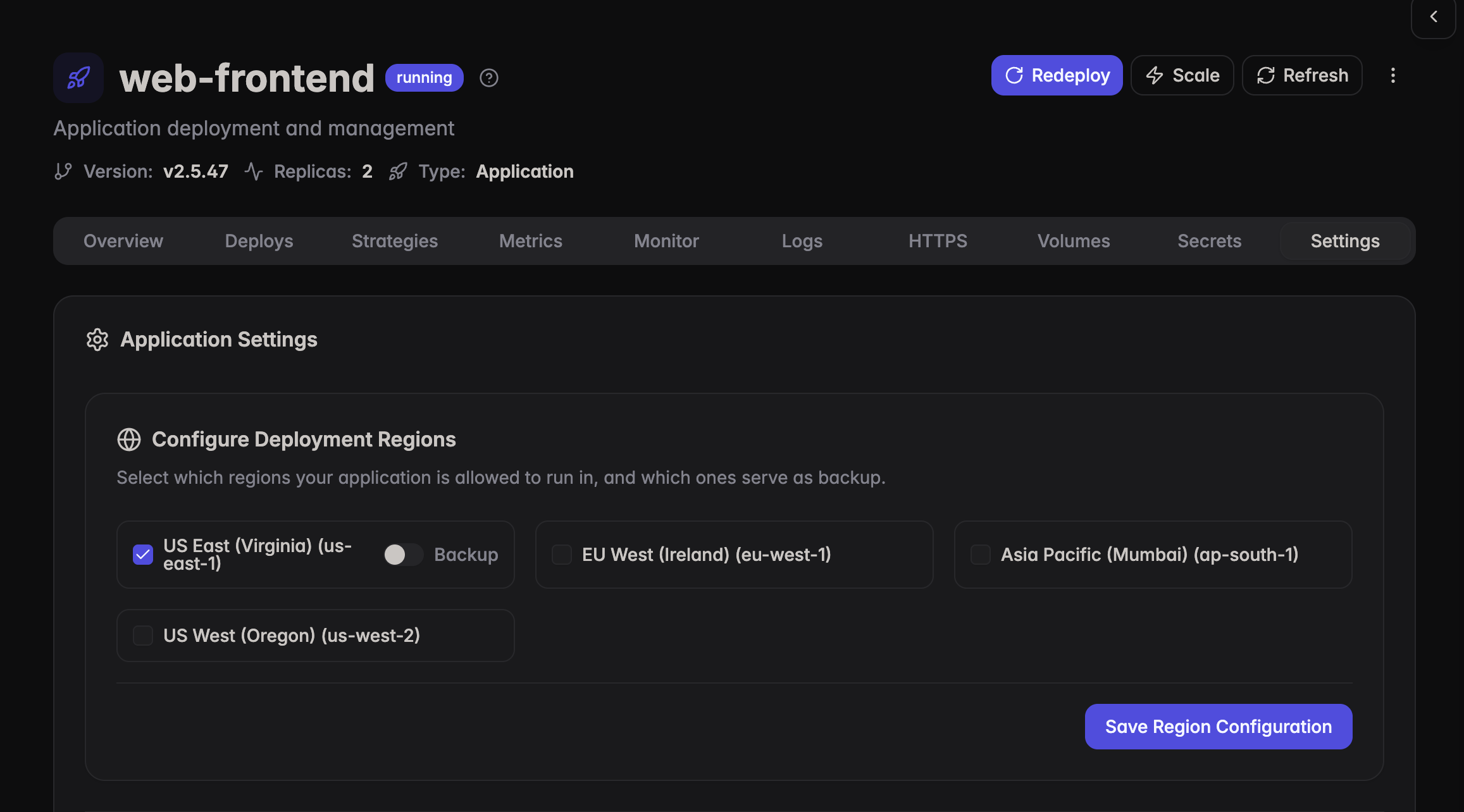
Configure backup regions from the Settings tab under Configure Deployment Regions. You can select which regions your application is allowed to run in and toggle any active region as a backup for high availability and disaster recovery.
- Go to the left navigation tab > select an application > Settings tab
- Under Configure Deployment Regions, check the regions you want your application to run in
- For any selected region, enable the Backup toggle to mark it as a backup region
- Click Save Region Configuration