Blue-Green Deployment
Blue-Green Deployment
Blue-Green Deployment is a deployment strategy that keeps two identical environments for your application — Blue and Green — running at the same time. Only one of them is ever "active" and receiving live traffic; the other sits idle, ready to receive the next version. When you redeploy, the new version is built out in the idle slot, verified while it's still isolated from real traffic, and then promoted with a single traffic switch.
Unlike Rolling (which replaces instances gradually, with both versions briefly serving traffic together) or Canary (which shifts a percentage of traffic at a time), Blue-Green is all-or-nothing: traffic is either fully on Blue or fully on Green, never split between them. That makes both the switch and the rollback effectively instant.
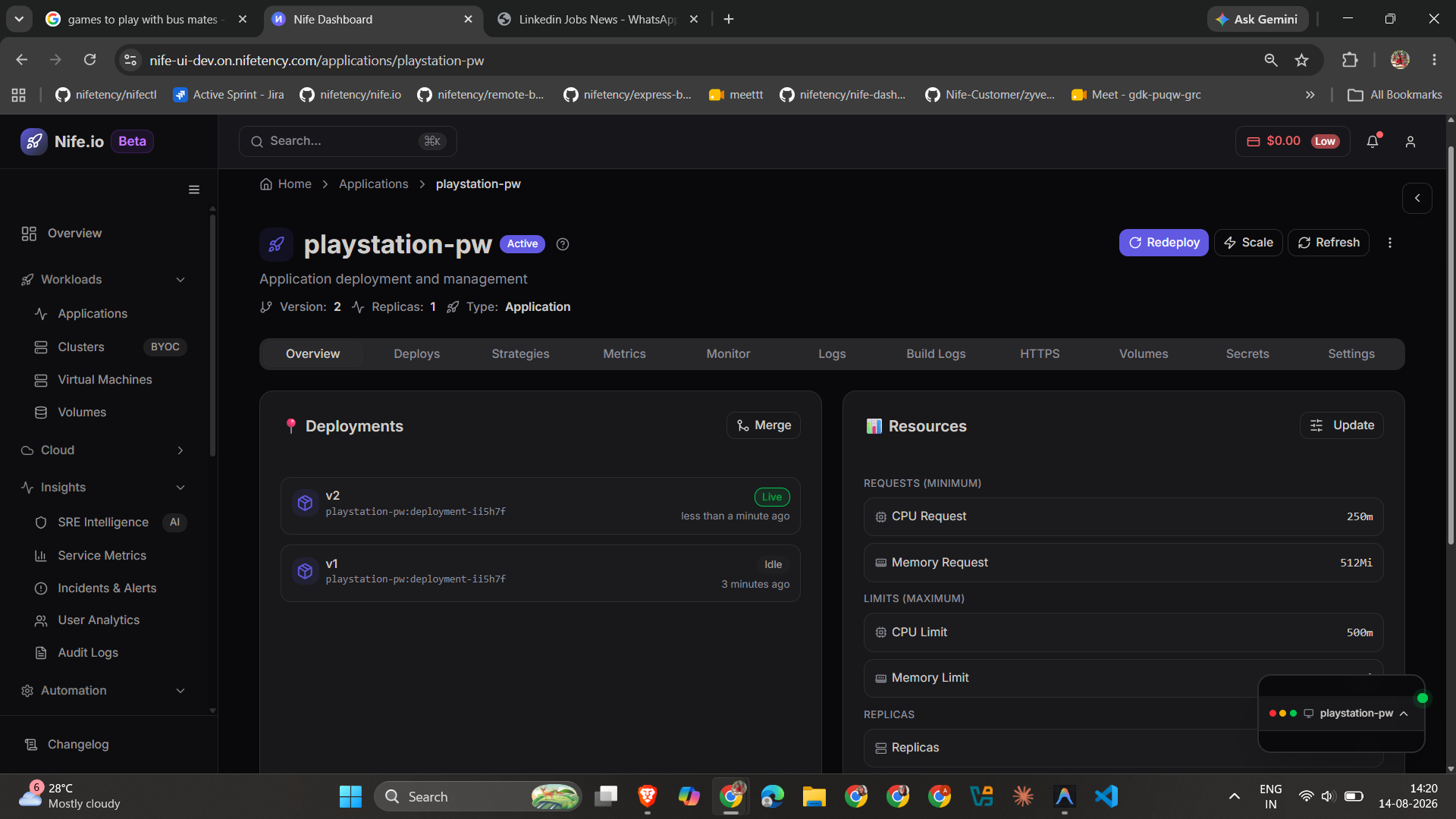
How it works
- Deploy with the Blue-Green strategy. Select Blue-Green as the deployment strategy for an application (from the dashboard's deploy wizard, or via
nifectl deploy --strategy blue-green). The very first deployment starts in the Blue slot. - Redeploy lands in the idle slot. Every subsequent redeploy creates a new Deployment in whichever color is currently idle — never in the one taking live traffic — so the version currently serving users is never touched mid-deploy.
- Both environments are visible and health-checked independently. The app's Strategies tab shows the image/version running in each color, and whether each one is currently healthy, before you commit to anything.
- Switch traffic when you're ready. A single Switch to Blue / Switch to Green action flips which color is live. There's no gradual ramp — the switch is immediate.
- Roll back the same way. Since the previous version is still sitting in the other color slot (until it's replaced by the next redeploy), rolling back is just switching traffic back to it.
Viewing Blue-Green status
Open the app's Strategies tab to see the current state of both environments: which color is active, the image/version deployed to each, and a live health check for each side.
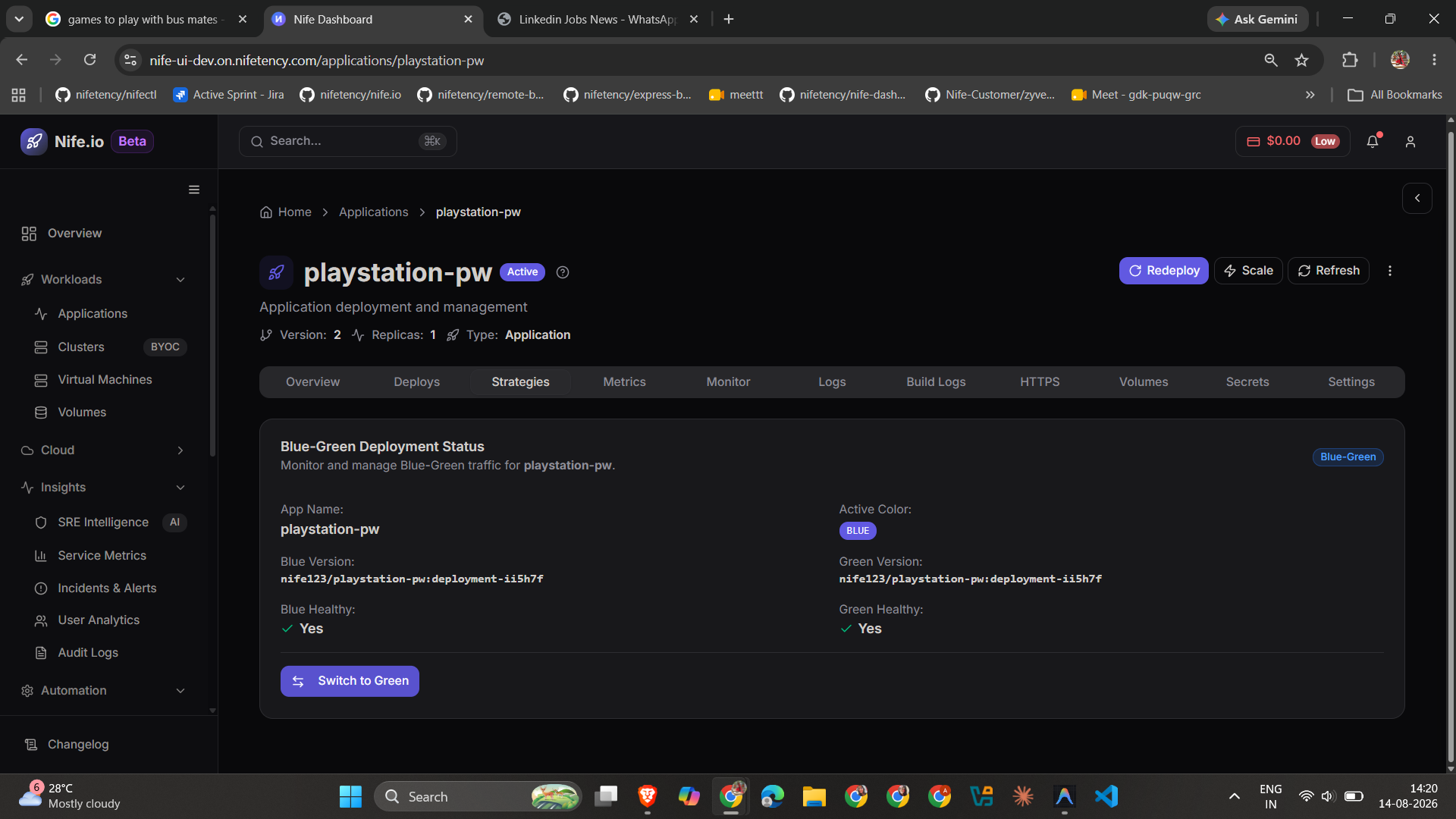
Blue Healthy / Green Healthy reflect whether that slot's pods are currently passing their health checks — check this before switching, since switching to an unhealthy color sends live traffic to something that isn't ready.
Switching traffic
Click Switch to Green (or Switch to Blue, depending on which side is currently idle) to flip live traffic to the other environment. The switch takes effect immediately, and the panel updates to show the new active color along with a Last Switch timestamp.
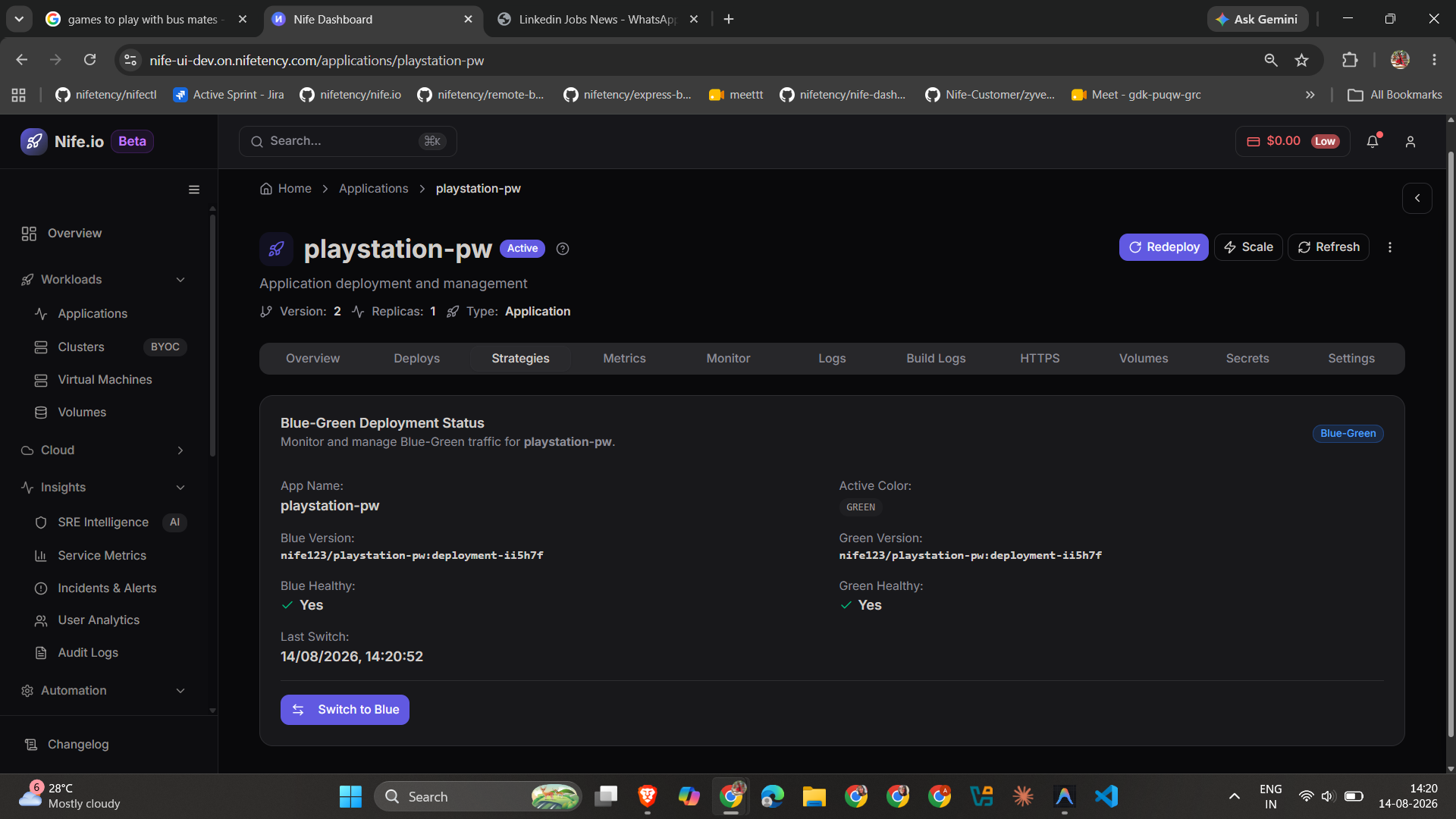
Because the previously-active color is left running (not deleted) right after a switch, switching back is just as immediate — click Switch to Blue again and traffic returns to exactly what was serving users before.
Verify the idle color's health and version before switching. Since Blue-Green has no gradual ramp-up like Canary, whatever is running in the color you switch to receives 100% of live traffic the instant you click.
Benefits
- Instant rollback — switch back to the previous color with a single action, no redeploy required
- Zero downtime — the switch is a traffic cutover, not a rolling restart
- Full testing before going live — the new version runs and can be verified in the idle slot before it ever sees real traffic
See also
- Deployment Strategies — how Blue-Green compares to Rolling, Canary, and A/B Testing
- A/B Testing — for splitting live traffic between two versions instead of switching all at once
nifectl deploy— CLI reference, including--strategy