A/B Testing
A/B Testing
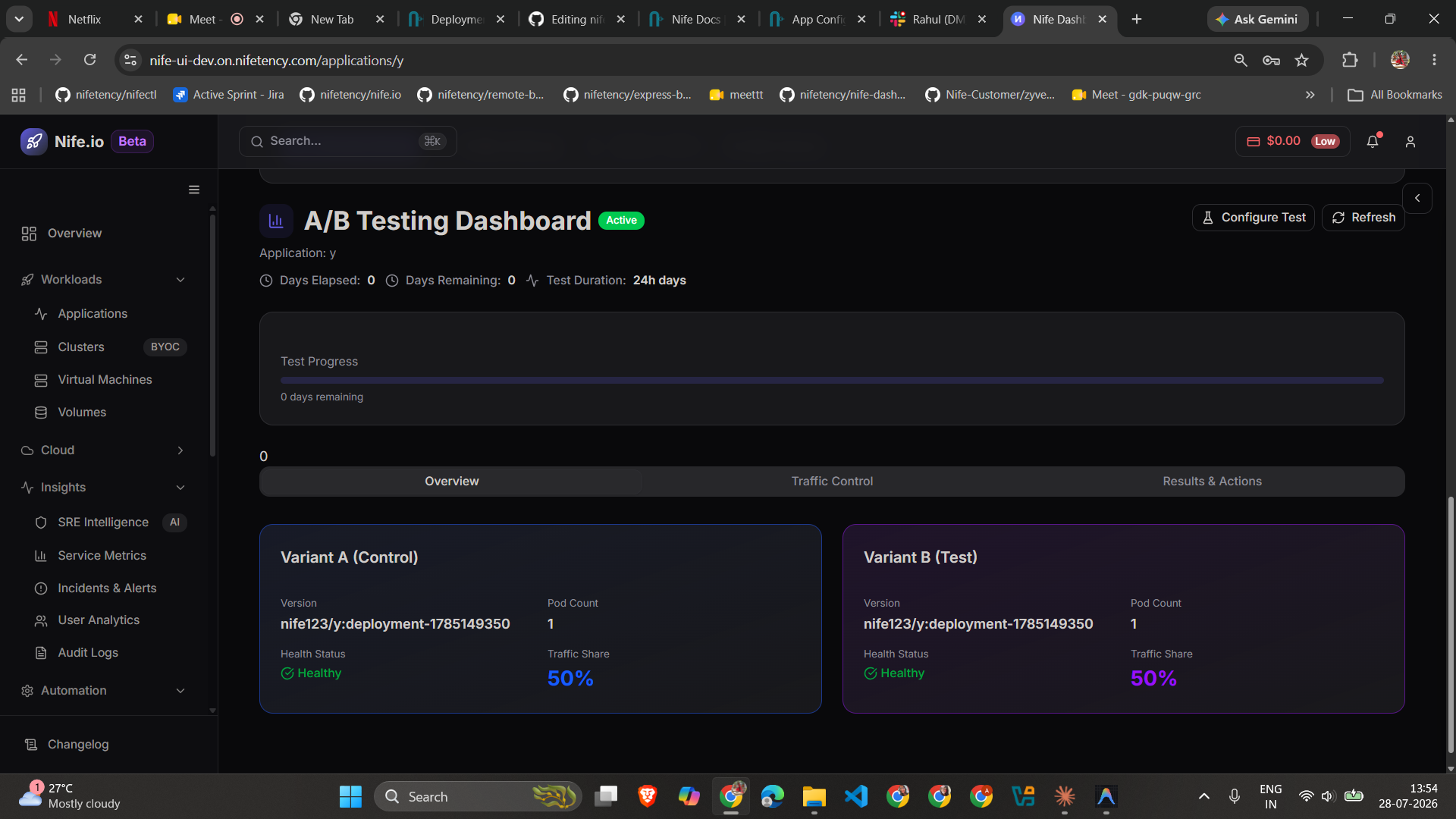
A/B Testing is a deployment strategy that runs two versions of your application — Variant A (Control) and Variant B (Test) — side by side against real, live traffic, so you can measure which one actually performs better before committing to it fully.
Unlike Canary (which gradually shifts all traffic to a single new version) or Blue-Green (which switches all traffic at once), A/B Testing keeps both versions running in parallel for as long as you need, splits traffic between them by percentage, and gives you the tracked data — users, conversions, conversion rate — to make an evidence-based call on which variant wins.
How it works
- Deploy with the A/B Testing strategy. Select A/B Testing as the deployment strategy for an application (from the dashboard's deploy wizard, or via
nifectl deploy --strategy ab-testing). Nife creates two independent Deployments and Services —<app>-variant-aand<app>-variant-b— both starting from the same image and configuration. - Nife tags each variant automatically. Every pod is stamped with a
VARIANT(andREACT_APP_VARIANT, for Create-React-App-based apps) environment variable set toaorb. Your application doesn't need to guess which variant it's running as — it can read this directly. - Traffic is split between variants. By default, traffic starts at 50% / 50%. You can change this at deploy time or at any point during the test.
- Your app reports views and conversions. Nife tracks infrastructure metrics (latency, error rate, pod health) automatically, but a "conversion" — a signup, a purchase, a completed action — is a business outcome only your app can recognize. Add two small tracking calls to your app (see below) so Users/Conversions aren't stuck at 0.
- Review results and declare a winner. Once enough traffic has been tracked, the dashboard tells you whether the difference between variants is statistically significant, and lets you route 100% of traffic to the winner.
Setting the traffic split
From the dashboard: open the app's A/B Testing tab → Traffic Control, drag the split slider, and save.
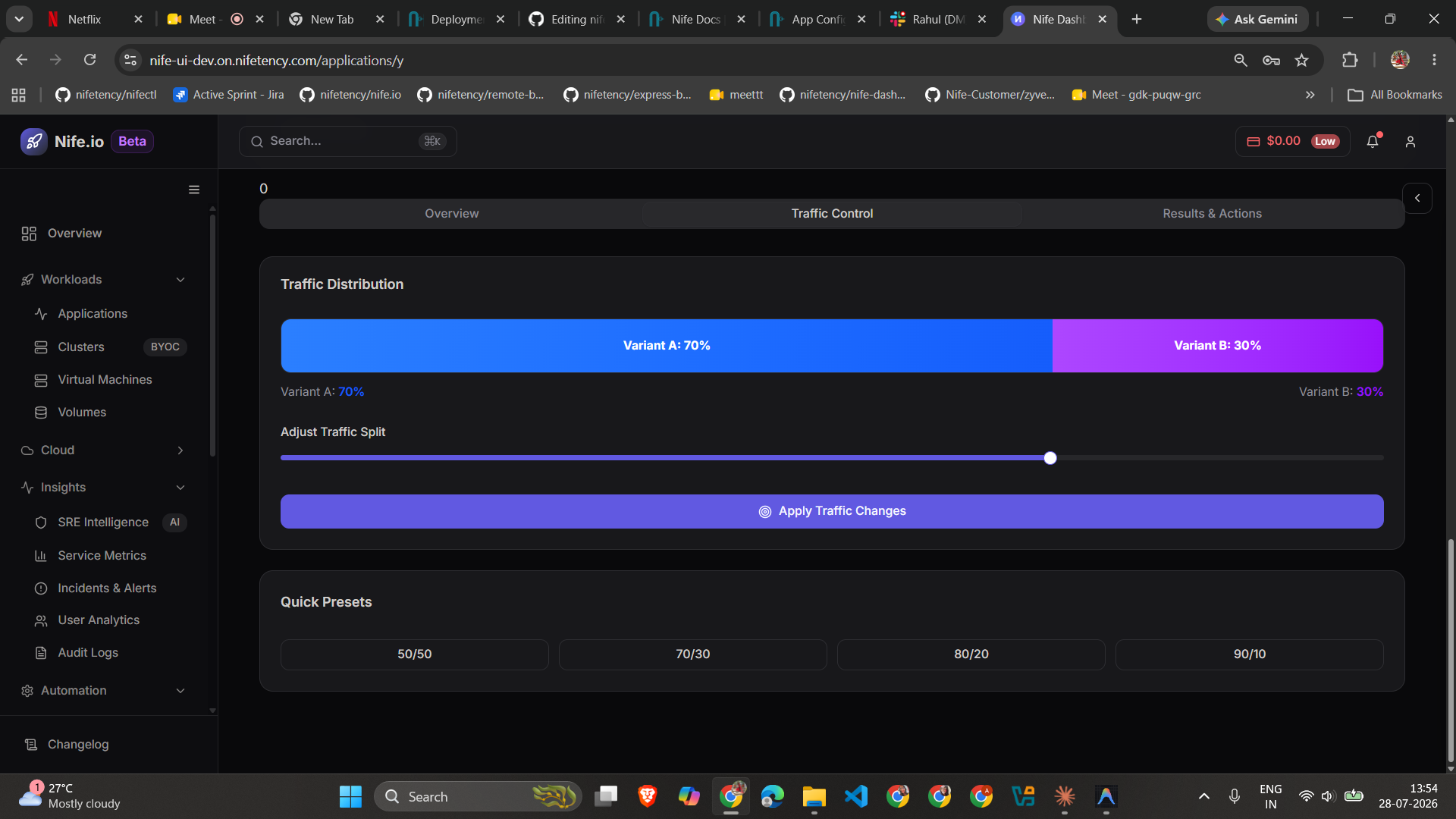
From nifectl: pass the split directly as flags, or leave them off to be prompted interactively.
nifectl deploy --strategy ab-testing --traffic-a 70 --traffic-b 30
traffic for a = 70
traffic for b = 30
Variant B's percentage always fills the remainder of Variant A's, and the two must add up to 100.
Adding tracking to your app
Add these two calls to your application — nife.io fills in which variant is running via environment variables, you only need to send the event.
The values below — the URL, appName, and orgSlug — are placeholders. Before using this snippet, replace example.com with your actual Nife API endpoint, and your-app-name / your-org-slug with your real app name and organization slug (both visible in your app's Configuration page).
// On page load / app start — counts as one "view" for this variant
fetch("https://example.com/api/v1/abtest/track", {
  method: "POST",
  headers: { "Content-Type": "application/json" },
  body: JSON.stringify({
    appName: "your-app-name",
    orgSlug: "your-org-slug",
    variant: process.env.VARIANT, // or REACT_APP_VARIANT for CRA apps
    eventType: "view",
  }),
});
// On your success event (signup, purchase, checkout, etc.) — counts as a "conversion"
fetch("https://example.com/api/v1/abtest/track", {
  method: "POST",
  headers: { "Content-Type": "application/json" },
  body: JSON.stringify({
    appName: "your-app-name",
    orgSlug: "your-org-slug",
    variant: process.env.VARIANT,
    eventType: "conversion",
  }),
});
Without these calls, Users and Conversions stay at 0 and a winner can never be declared, since there's no data to judge either variant on.
Reading results
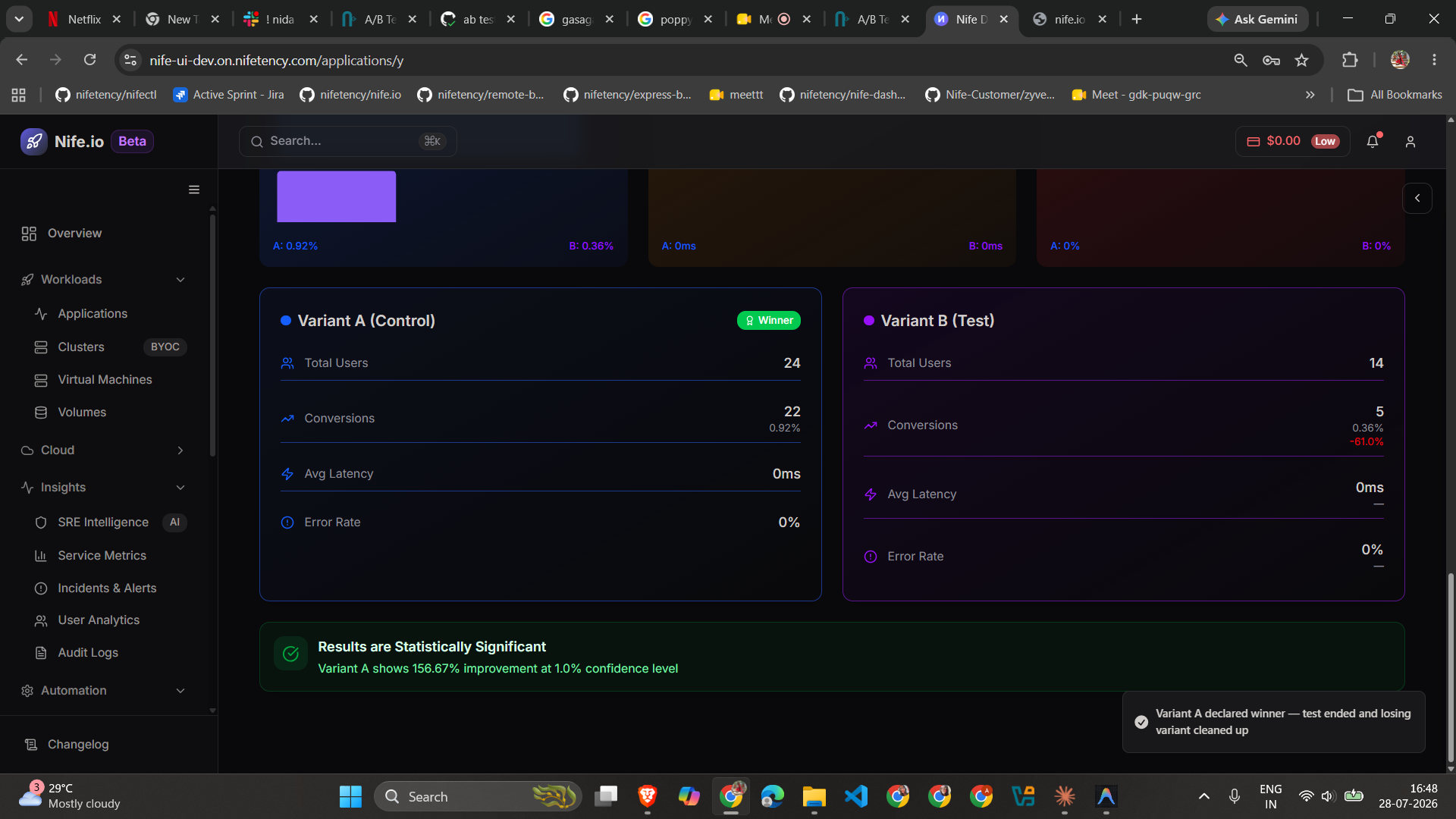
The Results & Actions tab shows, per variant: total users, total conversions, conversion rate, average latency, and error rate — plus the improvement of one variant over the other and the statistical confidence behind that number.
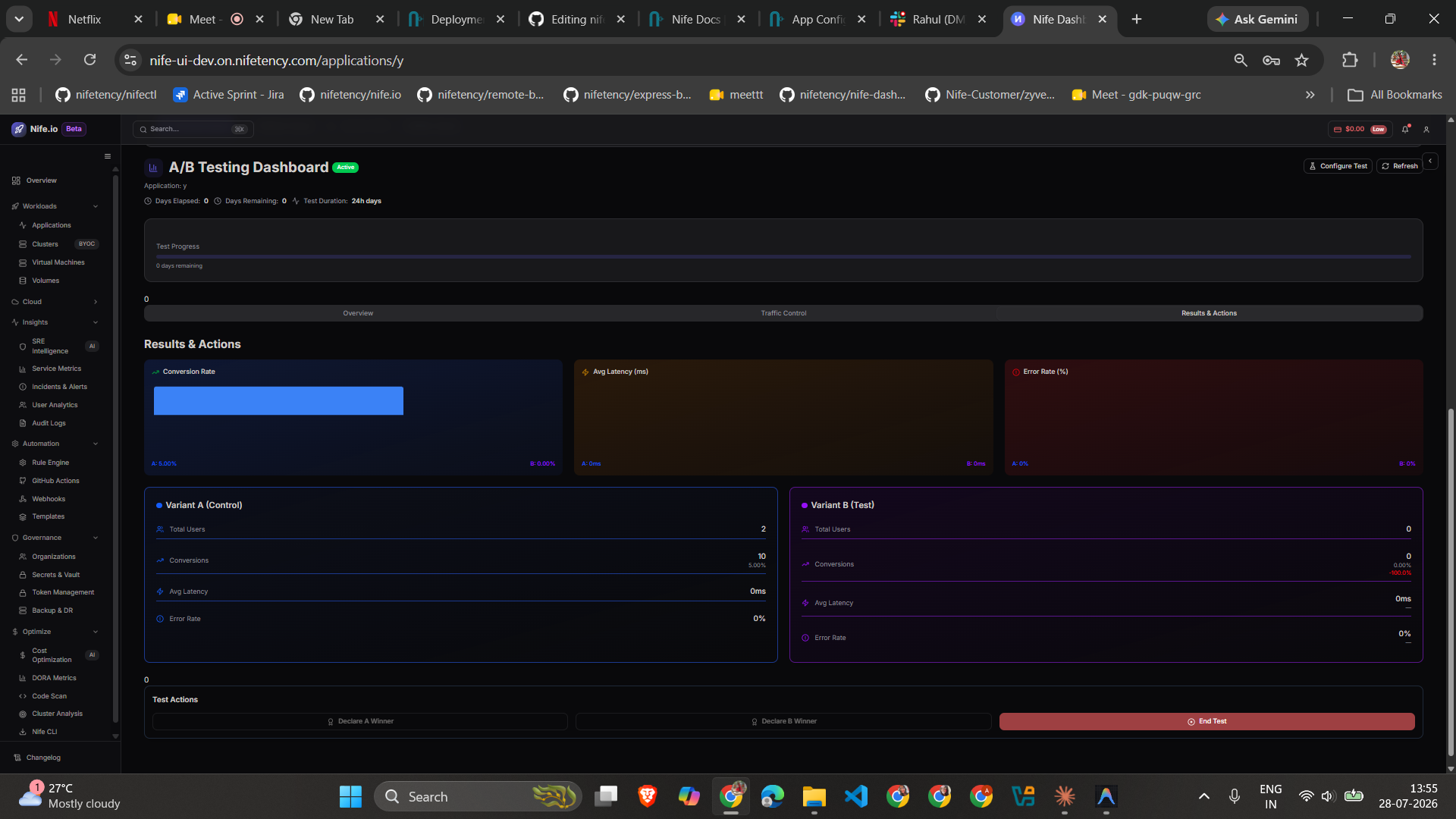
Declare A Winner / Declare B Winner only unlock once both variants have enough tracked views and the result clears the significance threshold — this prevents declaring a winner off a handful of misleading data points. If the buttons stay disabled, hover them to see why (not enough data yet, or the two variants are performing too similarly to call).
Declaring a winner or ending the test
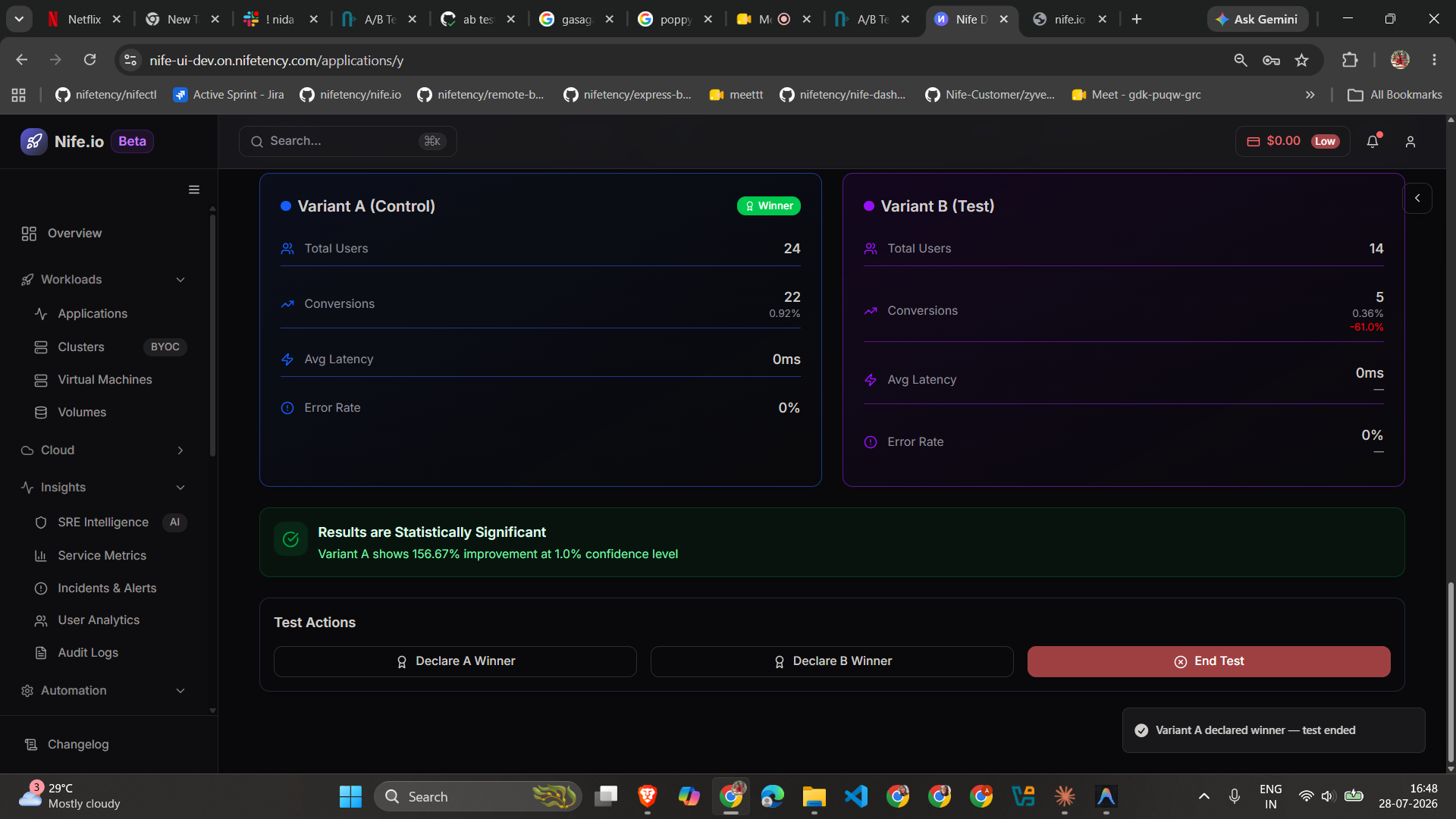
- Declare A/B Winner routes 100% of traffic to the chosen variant, ends the test, and — unless you uncheck the cleanup option in the confirmation dialog — deletes the losing variant's Deployment and Service so it stops consuming cluster resources.
- End Test ends the test without declaring a winner. Traffic stays at whatever split it was last set to, and both variants keep running; use this if you want to stop the experiment without picking a side yet.
Once confirmed, the winning variant is marked, traffic shifts to 100%, and a toast confirms the outcome:
Give a test enough real traffic before declaring a winner. A result can look "significant" with very few users just by chance — the dashboard's significance gate is there to protect you from that, but it isn't a substitute for giving the test enough time to run.
See also
- Deployment Strategies — how A/B Testing compares to Rolling, Blue-Green, and Canary
nifectl deploy— CLI reference, including--strategy,--traffic-a, and--traffic-b