Canary Deployment
Canary Deployment
Canary Deployment is a deployment strategy that tests a new version against a small slice of live traffic before it earns the rest. Instead of switching everyone over at once (Blue-Green) or splitting traffic between two long-running variants (A/B Testing), Canary starts a new version small — 10% of traffic by default — and lets you grow that percentage, or roll it back to zero, once you've seen how it actually behaves.
Unlike Blue-Green (all-or-nothing, instant switch) or A/B Testing (both variants intended to run in parallel indefinitely for comparison), Canary is meant to converge: the canary either earns enough confidence to take over, or it gets rolled back. It's the strategy to reach for when you want real production traffic to validate a change before it reaches everyone.
How it works
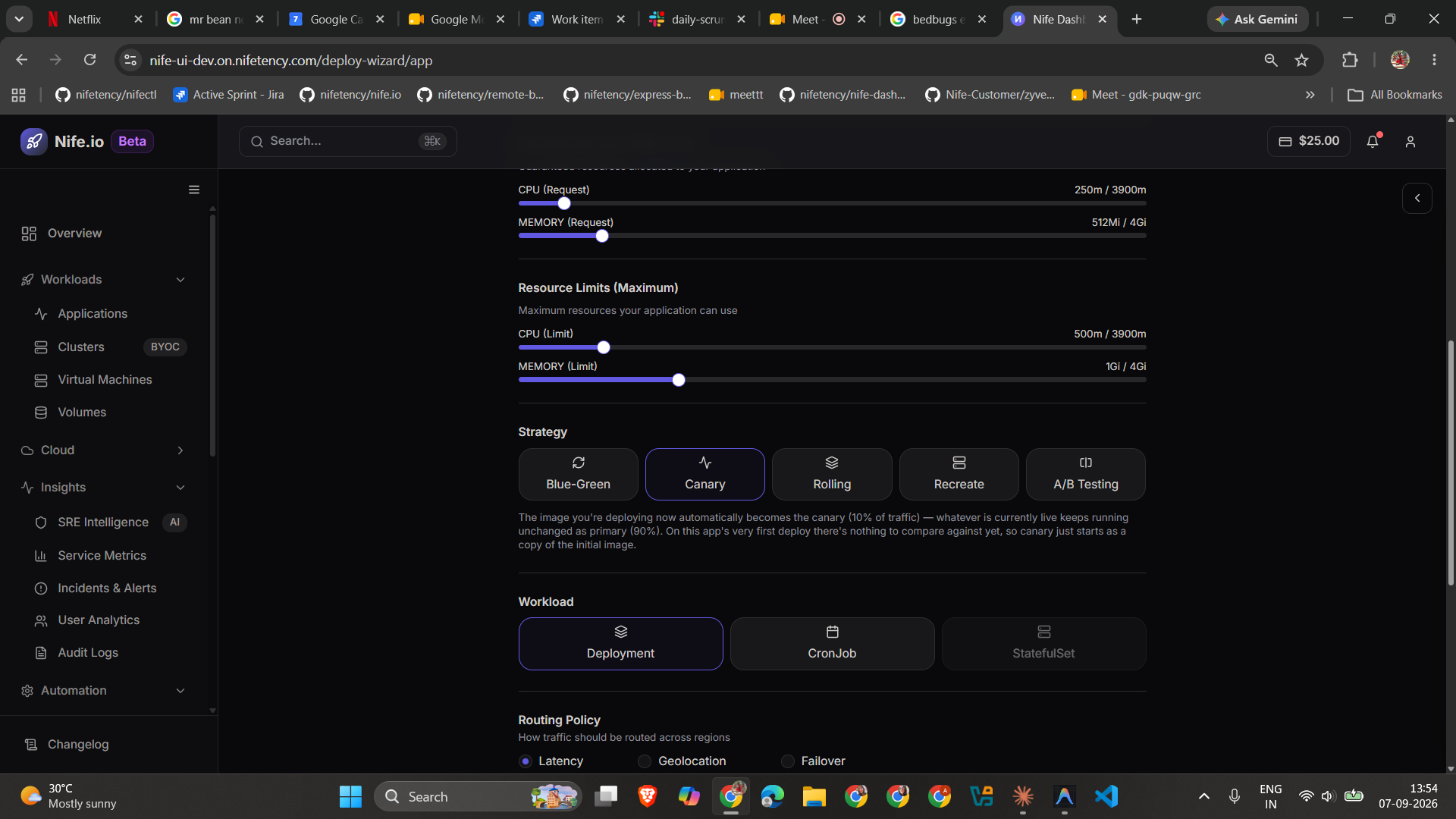
- Deploy with the Canary strategy. Select Canary as the deployment strategy for an application (from the dashboard's deploy wizard, or via
nifectl deploy --strategy canary). - First deploy seeds both slots identically. On an app's very first deploy there's nothing to compare the new image against yet, so canary starts as a copy of the initial image — primary and canary are identical until the next redeploy.
- Every redeploy after that creates a new canary automatically. The image you just deployed becomes the canary, running at reduced scale (1 replica) behind a separate
<app>-canaryService, with a 90% / 10% traffic split taking effect between primary and canary immediately. - Primary is updated to match, at the same moment. Nife also updates the existing primary Deployment to the new image as part of the same redeploy, so opening the app right after a redeploy shows the new version regardless of which slot happens to serve the request. The 90/10 traffic split still exists and is still yours to adjust or roll back — but from that point on both slots are running the same code. This is a deliberate choice: redeploys always take effect right away rather than leaving primary frozen on the old image, and the traffic split's job is to control how much live traffic is being watched on the newest infrastructure, not which code is running.
- Only the latest canary sticks around. If you redeploy again before promoting or rolling back, the previous canary is retired and replaced — there's only ever one active canary per app.
- Validate, adjust traffic, promote, or roll back, using the app's Strategies tab or the corresponding
nifectl canarycommands, as confidence in the new version grows or drops.
Viewing canary status
Open the app's Strategies tab to see the Canary Deployment Status panel: whether a canary exists, the image running in Primary and Canary, the current traffic split, and a metrics diff between the two.
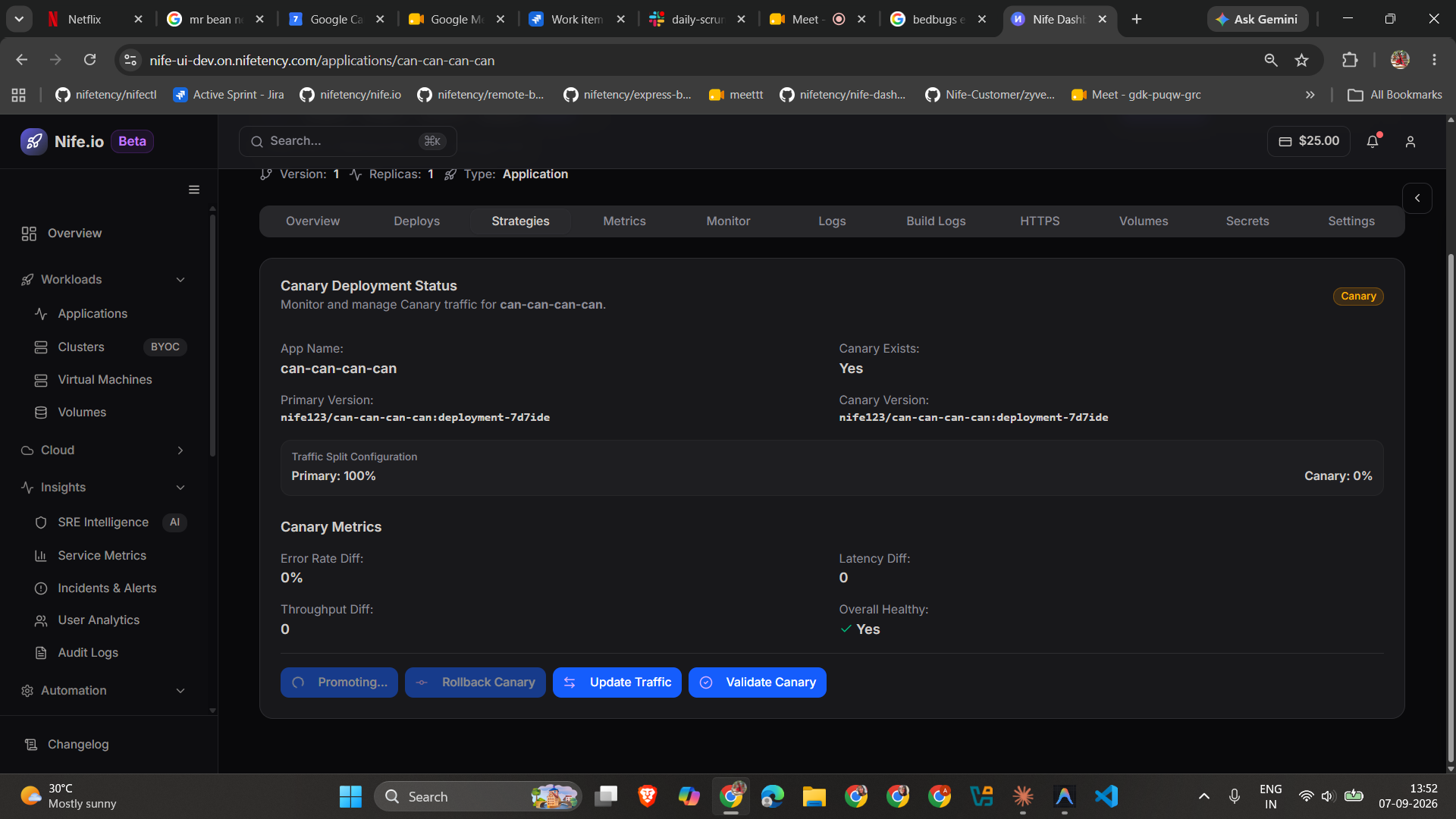
- Primary Version / Canary Version — the image tag currently running in each slot.
- Traffic Split Configuration — the current Primary % / Canary % split.
- Canary Metrics — Error Rate Diff, Latency Diff, and Throughput Diff between canary and primary, plus an overall Healthy indicator, computed from live Prometheus metrics for each slot.
From nifectl, the equivalent is:
nifectl canary status --app <app-name> --org <org-slug>
which prints the same traffic split, pod/health summary, and a metrics diff.
Setting the traffic split
Click Update Traffic on the Strategies tab, enter the percentage of traffic to send to canary, and confirm. The primary percentage is always 100 - canary, so you only ever set one number.
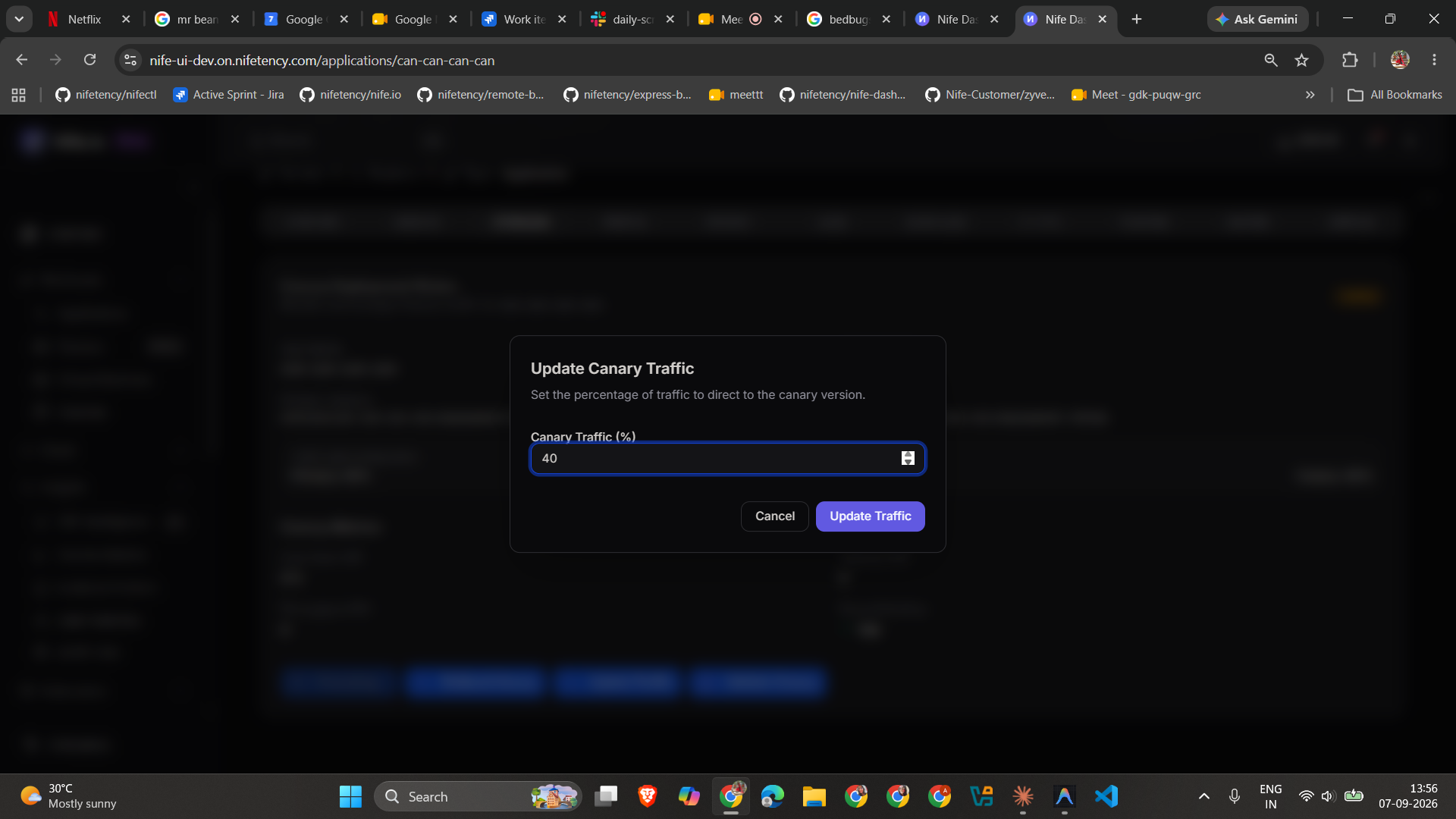
From nifectl:
nifectl canary update-traffic --app <app-name> --org <org-slug> --canary-percentage 40
Traffic changes take effect against the live NifeX load balancer route, not just a stored configuration value — expect it to apply within a few seconds.
Validating canary
Click Validate Canary (or run nifectl canary validate) before increasing traffic or promoting. Validation checks, in order:
- Canary pods are ready
- The canary Service has live endpoints
- The canary's health check endpoint responds (non-blocking — a missing health endpoint won't fail validation on its own)
- Canary metrics (error rate, latency) are within a healthy range compared to primary
A failed validation lists exactly which check failed, so you know whether to wait, investigate, or roll back rather than promote.
Promoting canary
Click Promote Canary (or run nifectl canary promote) to gradually ramp canary traffic up in steps — 25% → 50% → 75% → 100% — pausing between each step to re-check canary's metrics before continuing. If canary looks unhealthy at any step, promotion stops and returns an error rather than continuing to ramp up a failing version.
Promotion shifts traffic to 100% canary — it doesn't delete the old primary or relabel canary as the new primary afterward. If you promote to 100% and then want a clean single-Deployment state again, redeploy normally afterward.
Rolling back canary
Click Rollback Canary (or run nifectl canary rollback) to immediately set traffic back to 100% primary / 0% canary. You can optionally delete the canary Deployment and Service at the same time (--delete-canary on the CLI, or leave the checkbox ticked in the confirmation dialog on the dashboard) — otherwise canary keeps running at 0% traffic so you can adjust and re-test without a full redeploy.
Benefits
- Reduced blast radius — a bad version only ever reaches a small percentage of users before you notice
- Real user testing — validated against actual production traffic and metrics, not synthetic tests
- Easy, fast rollback — one action returns 100% of traffic to the known-good primary
See also
- Deployment Strategies — how Canary compares to Rolling, Blue-Green, and A/B Testing
- Blue-Green Deployment — for an instant, all-or-nothing switch instead of a gradual ramp
- A/B Testing — for comparing two versions side by side indefinitely, rather than converging on one
nifectl deploy— CLI reference, including--strategy