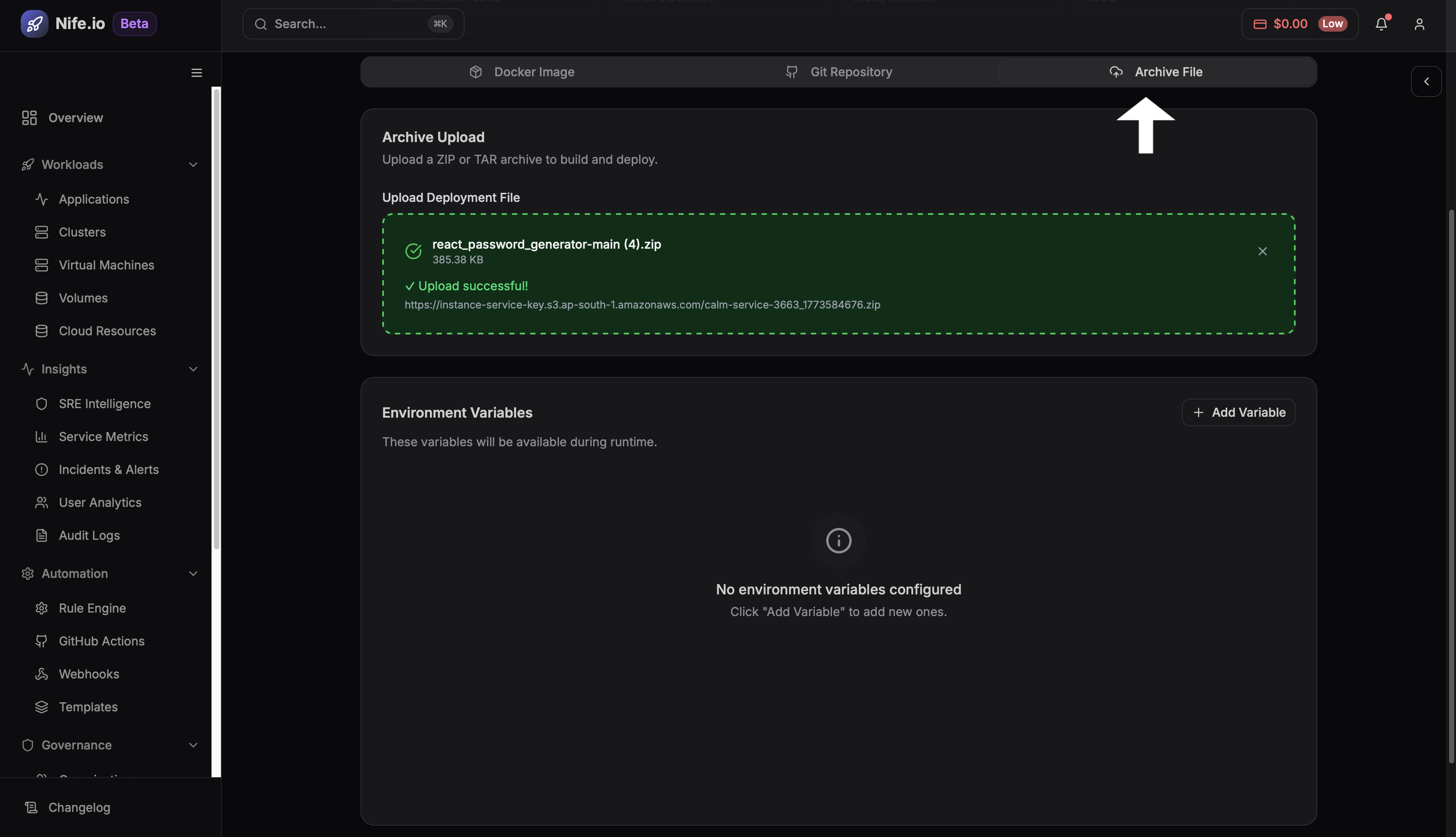
Redeploy Application
The Redeploy feature allows you to deploy a new version of an existing application without creating a new deployment configuration.
You can also Revert to a previously deployed version if the latest deployment causes issues.
This helps maintain stability by allowing quick rollbacks to a working deployment.
Steps to Redeploy an Application.
Step 1: Navigate to the Application
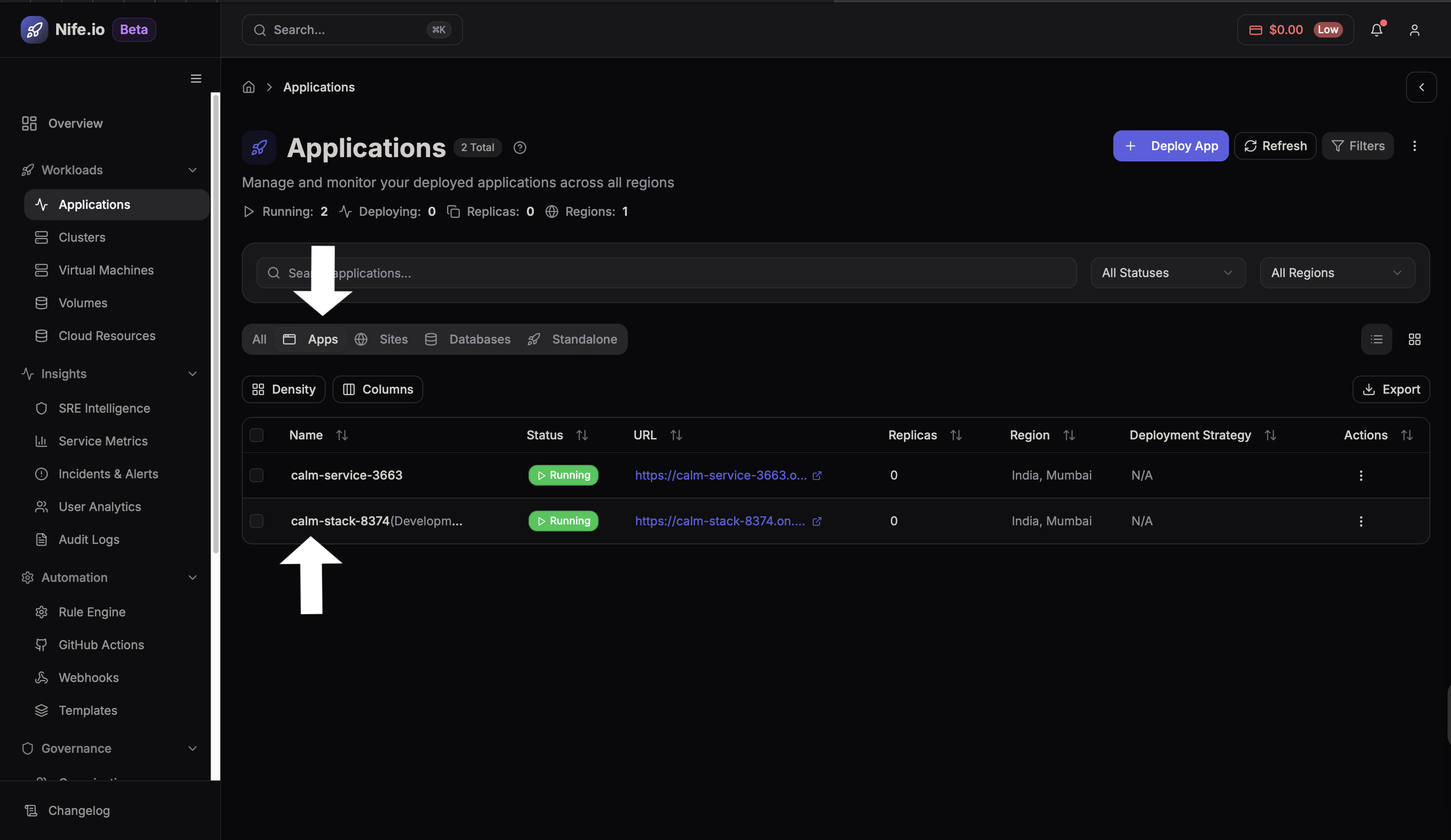
Open the dashboard and navigate to Applications on the sidebar then click on ** → App**.
Select the application you want to redeploy.
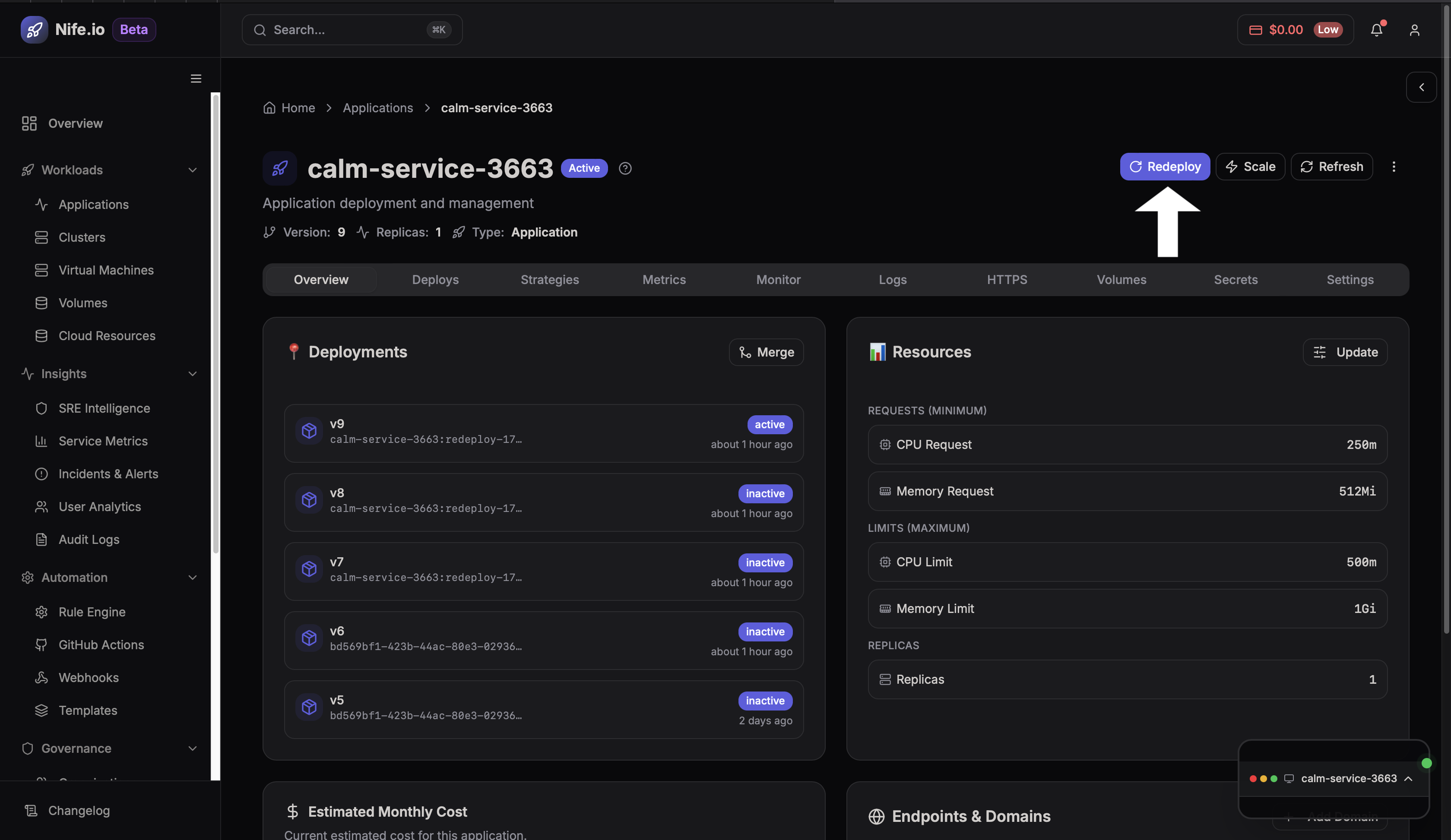
Step 2: Click Redeploy
Locate the Redeploy button on the application page.
Clicking this will open the redeployment configuration screen.
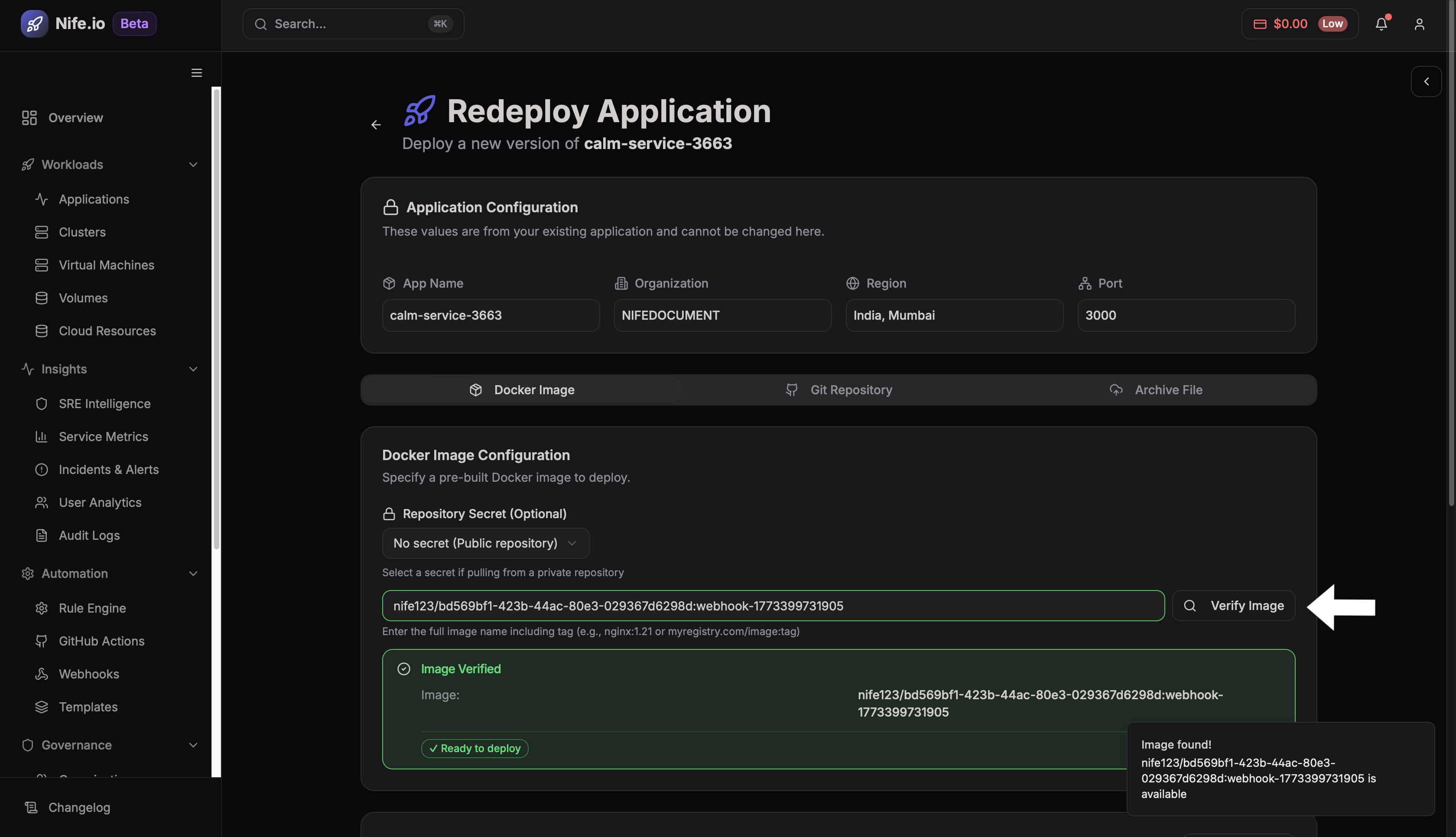
Step 3: Review Application Configuration
The Application Configuration section shows the existing configuration of the application.
This includes:
- App Name
- Organization
- Region
- Port
These values are inherited from the previous deployment and cannot be modified during redeployment.
##Reployment through Docker Image Method
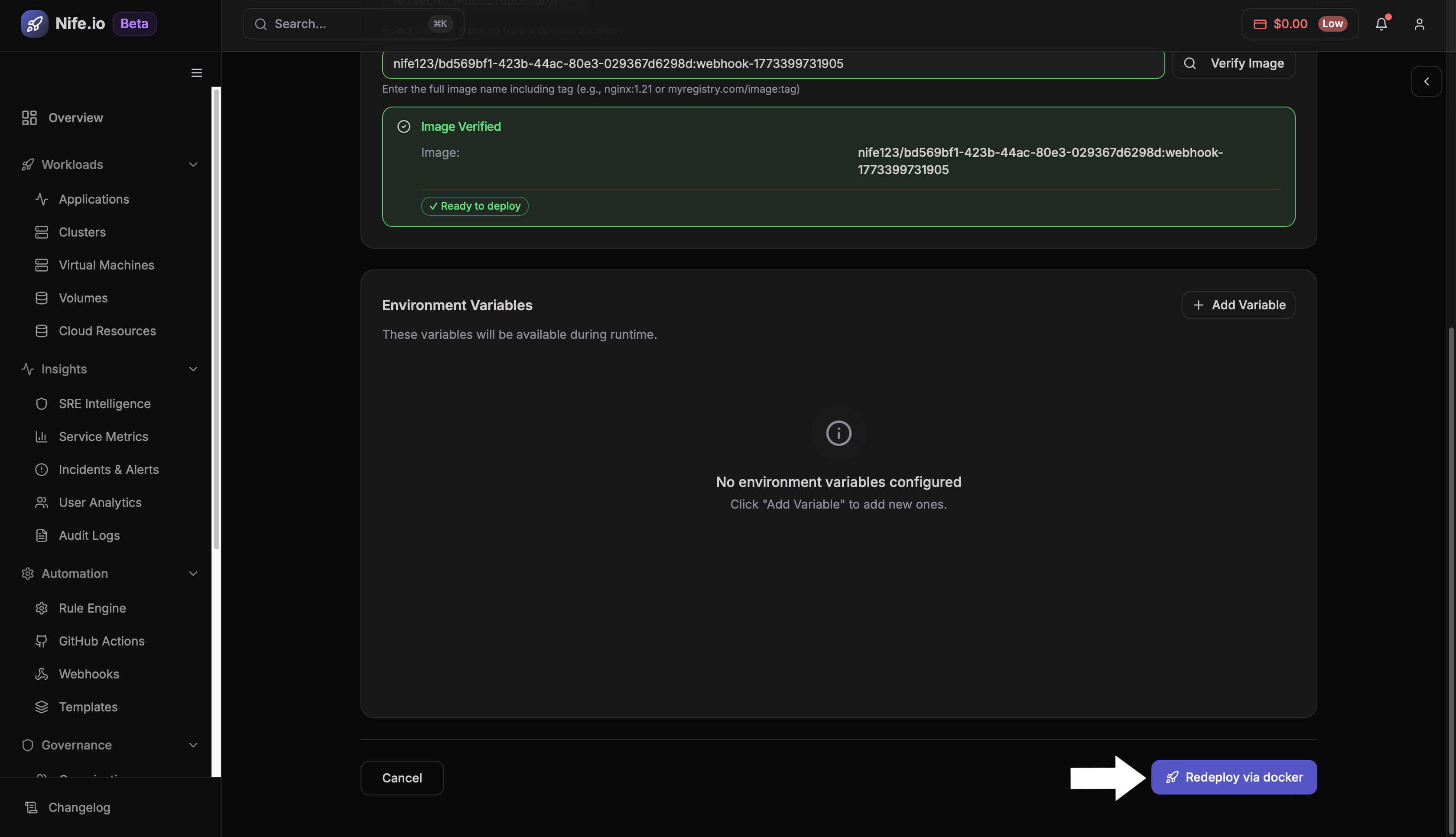
Select the Docker Image option and enter the full Docker image name along with its tag.
Example: myregistry/my-app:latest
If the image is valid, the platform will verify it and show that the image is ready for deployment.
If your application requires Environment Variables, you can add them in the configuration section.
This allows you to define runtime settings for your application.
Reployment through Git Repository Method
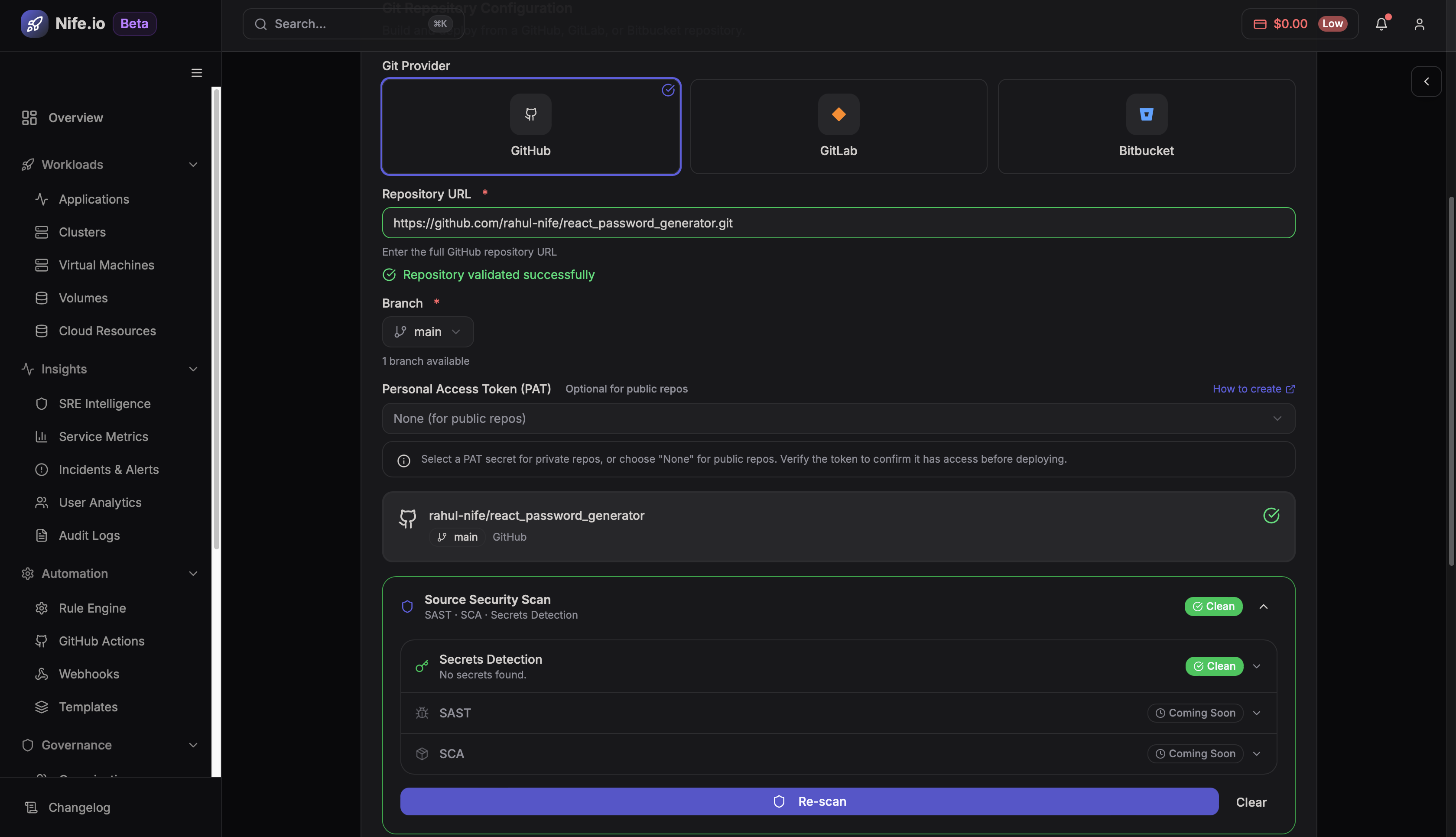
Firstly Select your preferred Git repository Configuration from the options
-
GitHub
-
GitLab
-
GitBitbucket
src=/assets/images/S5RedployandRevert-GitRepository-bff40dfd513e53ce403e693f022cb54d.png alt="Git repository configuration" width="900" height="400" />
Further Select the required branch from the list, and PAT if the repository URL is private only, else it is always optional and then we can also run an security scan to make sure everything is clean.
Monitor Build Process
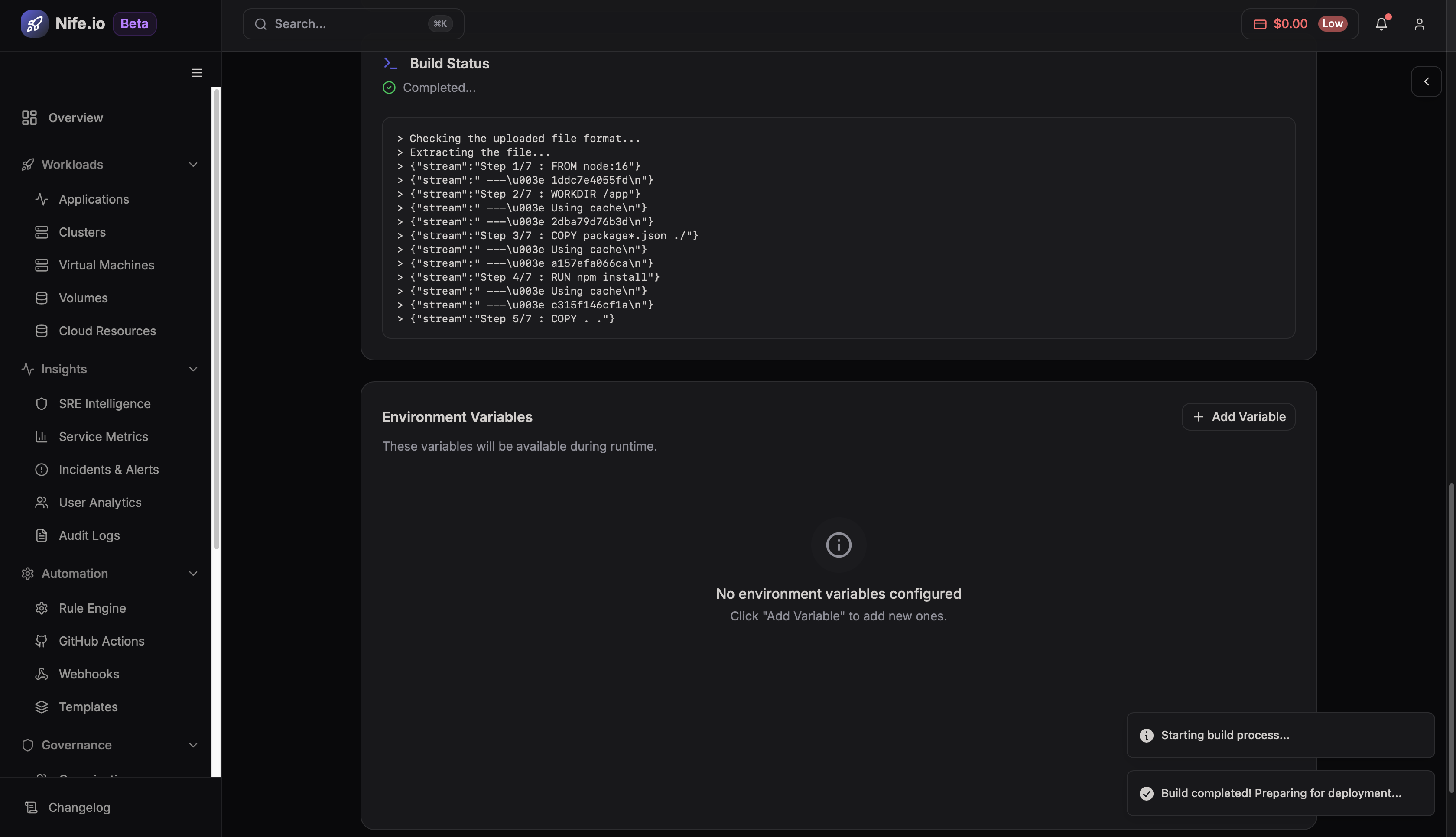
During redeployment, the Build Status section displays logs showing the progress of the deployment process.
These logs include:
- File extraction
- Dependency installation
- Docker image build
- Deployment process
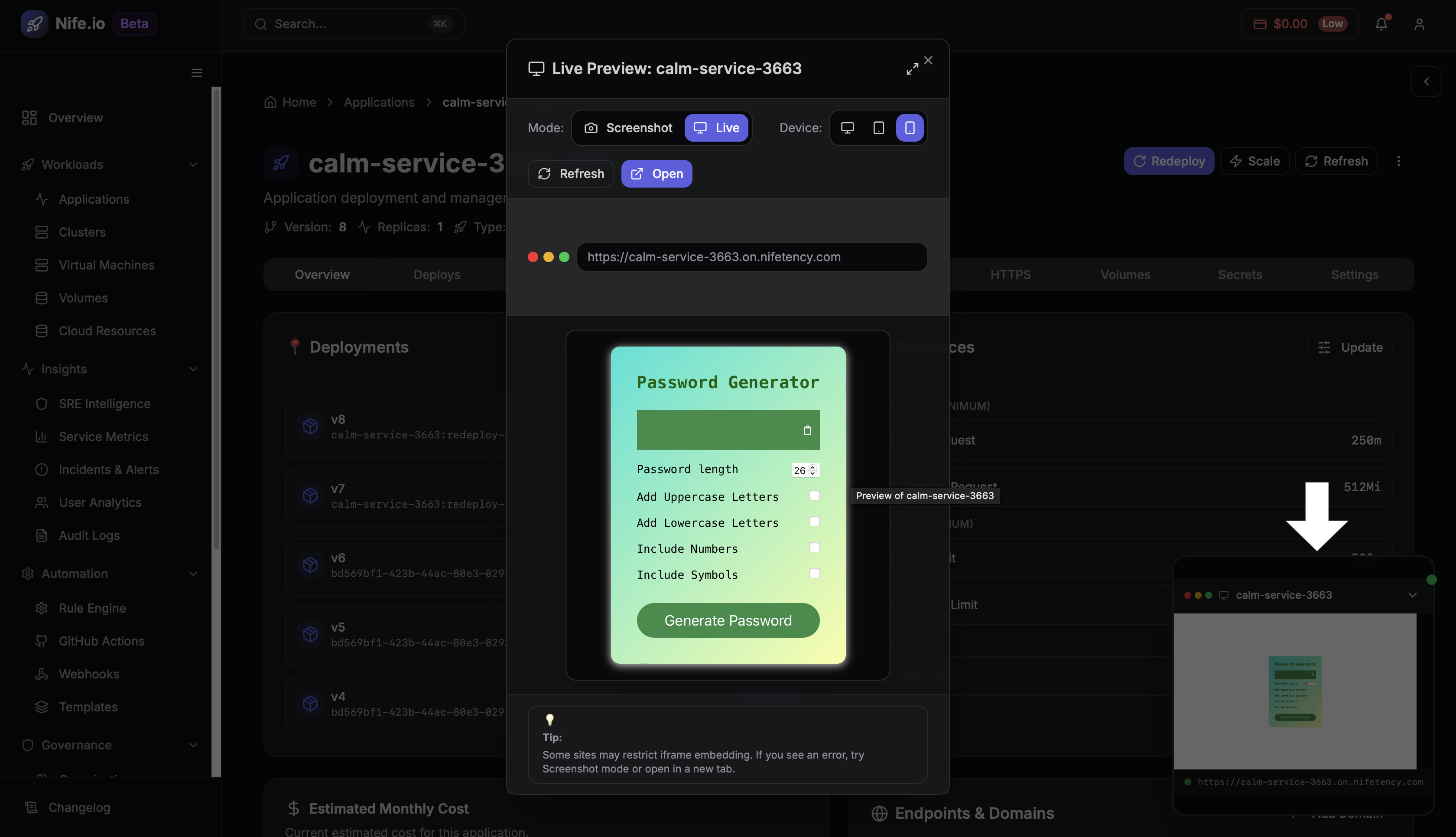
After completion, the new version will become the Active deployment.
Reployment through Uploading Archive File
Click Redeploy via Archive File to start the deployment process.
Upload the necessary files to the application in Zip, TAR or TAR.GZ, JSON, YAML or YML format with an maximum upload size of 100MB
The platform will begin building and deploying the new version of the application.